Breadcrumb: Aide › Editing during a session
Add a behavior in session
Add a behavior that is not on the learner's plan during a session in the mobile app, when your clinic allows it, and start recording it at once.
Applies toAide
When a learner shows a behavior that the plan does not list, you can add it during the session and record it straight away, instead of waiting for your BCBA to change the plan. You do this in the mobile app. Your BCBA sees the new behavior on the plan with the reason you gave.
Before you start
- Your clinic grants this permission: the org owner turns on Add new behaviors during sessions for you. Without it, + Add new behavior does not appear, and if the plan has no behaviors, the Behaviors tab is hidden.
- Only the mobile app has this. The web app has no way for aides to add a behavior.
- You must be the aide assigned to the session, and the session must be In Progress.
- The button is hidden while you are offline.
Add the behavior
Open the session and tap Data Collection, then the Behaviors tab.
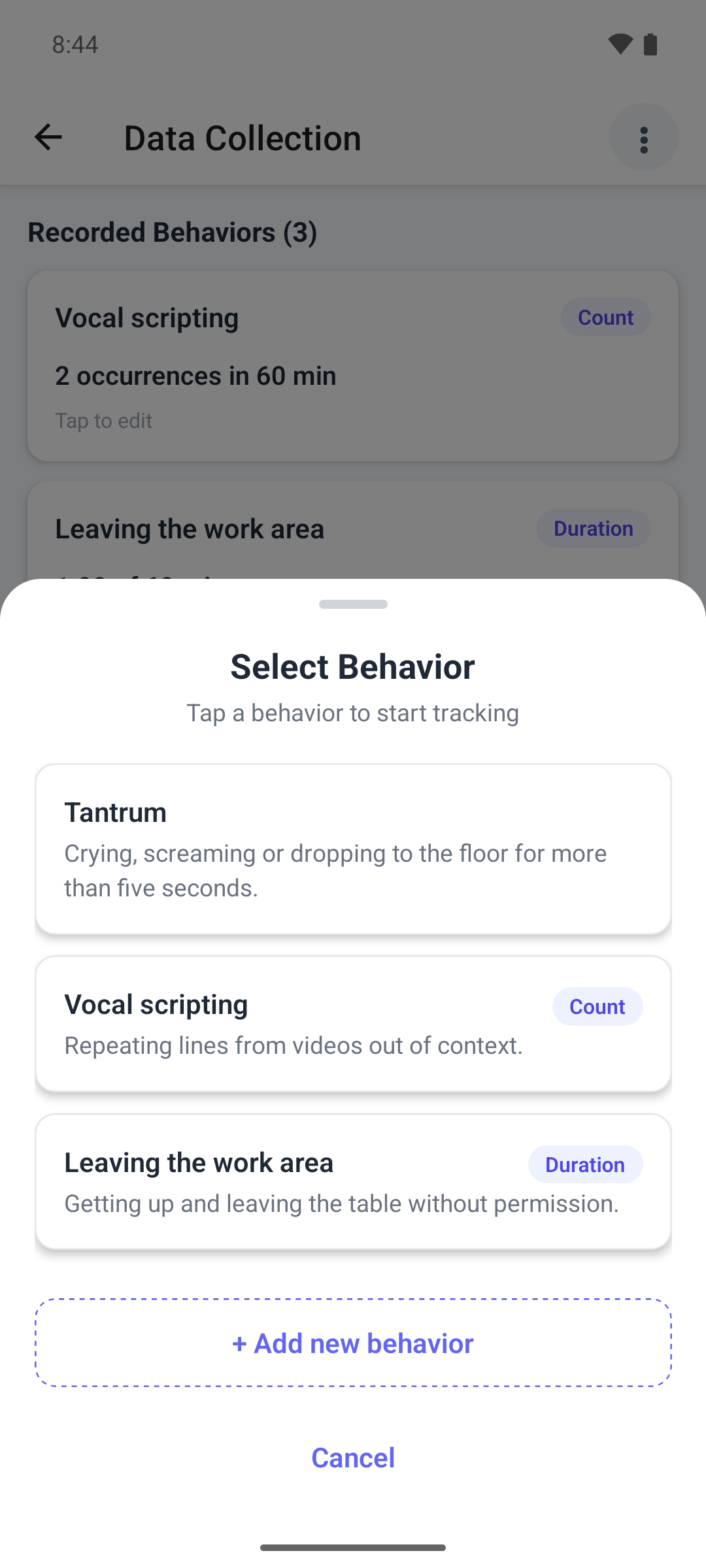
Tap the + button. Select Behavior opens with the behaviors on the learner's plan.
- Check that the behavior is not there already: ABACare does not stop you from adding the same name twice.
- Below the list, tap + Add new behavior. The Add behavior form opens.
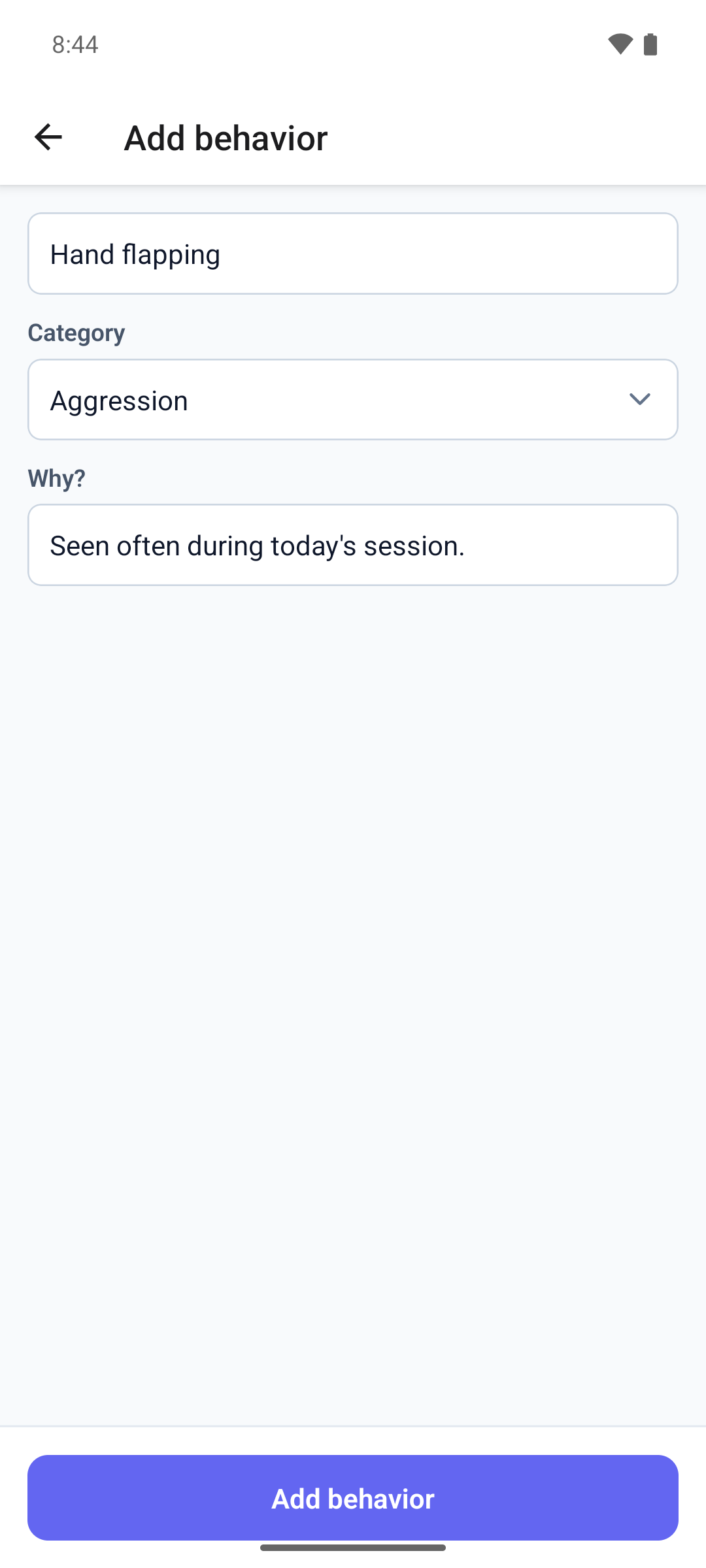
Fill in the form. Only the name and the note are required.
- Type the Behavior name.
- Pick a Category if one fits. Once picked, you can change it but not clear it.
- In Why?, write one line on why you are adding it. Without a note, the app shows Add a one-line note before saving.
- Tap Add behavior.
Things to know
- A behavior you add is always recorded as an ABC episode: what happened before, the behavior, and what happened after. Its lists of common antecedents and consequences stay empty until your BCBA edits the behavior. See Log an ABC behavior episode.
- The form has no definition. Your BCBA can add one later.
- Going back closes the form and throws away what you typed, without asking.
- If you press the keyboard's done key with no name, the app shows Could not save — check connection, although your connection is fine. Type a name and try again.
- If saving fails, the form stays open with what you typed. You don't have permission to do this means your clinic turned the permission off.
What happens next
- The form closes, and Select Behavior opens again on the Behaviors tab. The new behavior appears in the list: tap it to start recording.
- The behavior is Active on the plan, with your name and your note. Your BCBA is not notified, but sees both on the plan.