Breadcrumb: Aide › Running sessions
Write session notes
Add notes about a session while it is in progress, typed or dictated on the phone, and edit or delete your own notes.
Session notes describe the session as a whole: how the learner was, what happened, anything your BCBA should know. You write them while the session is in progress. In the mobile app you can type or dictate; in the web app you type. Your notes feed the session summary that ABACare writes when you submit, so add them before you submit. For a note about one target, add a target note instead.
Before you start
- As an aide, you can add, edit and delete notes only while the session is In Progress.
- BCBAs and org owners add notes in the web app, at any status of the session, and see every note on it. Everyone can edit or delete only their own notes.
Add a note
Web
Open the session. The Session Notes card is on the session page.
- Type your note in the box. It holds up to 10,000 characters, and a counter shows how many you have used.
- Select Add Note.
The message Note added successfully appears and the note is added to the list with your name and the time.
Mobile
Open the notes from the data collection screen.
The notes open over the screen you are on.
- Tap the ⋮ menu at the top right, then Add Note.
- Type in the box, or tap the microphone and speak. The button turns red and Recording... shows while it listens.
- Tap the microphone again to stop, then check the text.
- Tap Add Note.
The note appears in the list.
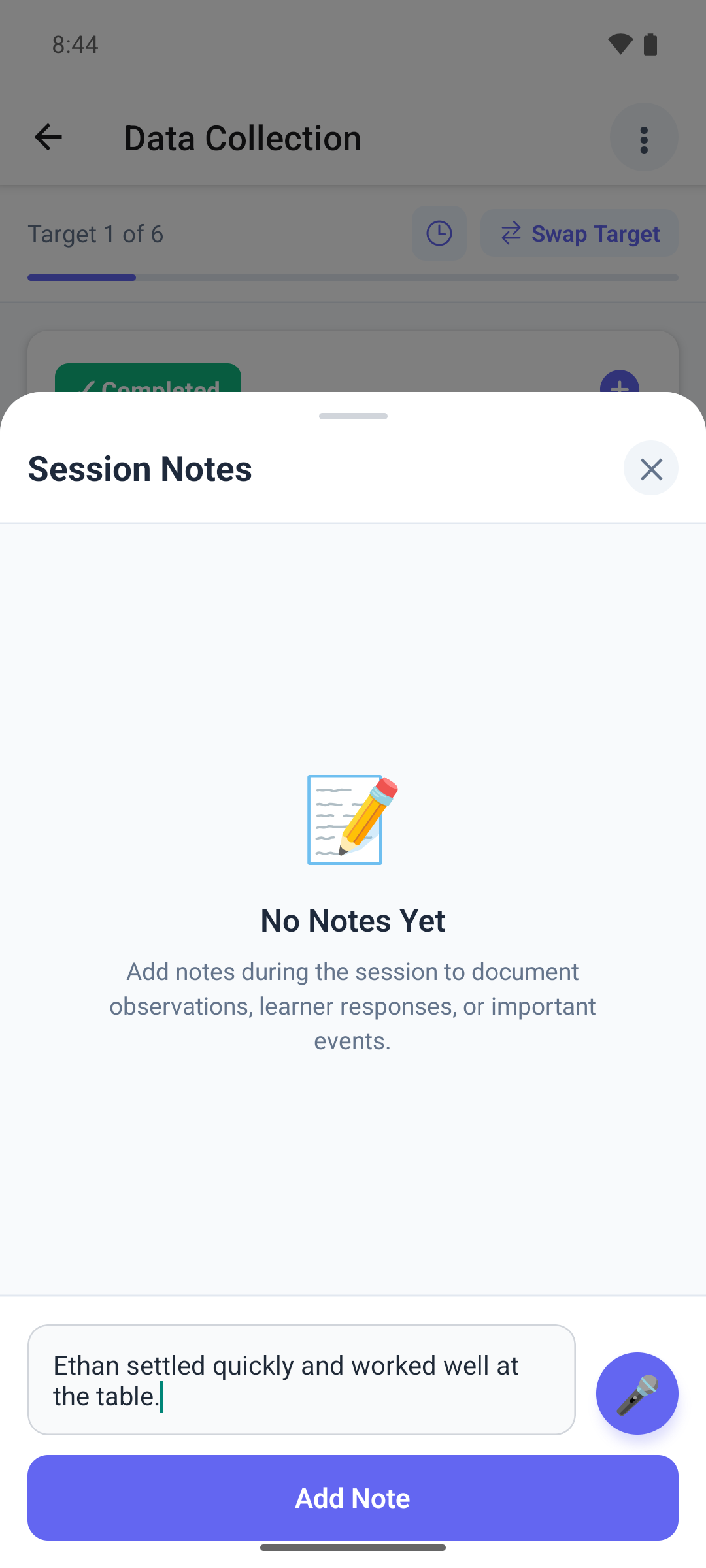
Dictating a note
- The first time you tap the microphone, the app explains why it needs it. Tap Enable, then allow microphone access. If you turned access off, the app shows Microphone Access Required with Open Settings.
- Dictation replaces anything already in the box. Dictate first, then type your additions.
- Stop recording before you tap Add Note. Otherwise the app keeps listening and fills the box again.
- Dictation uses the language the app is shown in.
Edit or delete a note
Web
Your own notes show a pencil and a bin.
- To edit, select the pencil, change the text and select Save, or Cancel to keep the note as it was.
- To delete, select the bin and confirm in the Delete Note window.
Mobile
Your own notes show Edit and Delete.
- To edit, tap Edit. The note moves into the box and Editing note... shows above it. Change the text and tap Add Note to save it, or tap Cancel.
- To delete, tap Delete and confirm.
Closing the notes in the mobile app throws away a note you have not added yet, without asking.
What happens next
- Your notes are saved on the session straight away. Aides see only their own notes. BCBAs and org owners see every note.
- When you submit, ABACare writes the session summary from your data and notes. A note added after that reaches the summary only if your BCBA regenerates it.
- After you submit, your notes are read-only. The web app still shows the pencil and bin, but saving shows an error.