Breadcrumb: Aide › Running sessions
Print a data collection worksheet
Create a PDF worksheet from a learner's treatment plan and print it to record session data on paper.
When a phone or tablet is not practical during a session, you can record data on paper. The worksheet is a PDF made from the learner's treatment plan: it lists the targets you choose with blank grids to fill in, plus the plan's active behaviors and rewards. ABACare makes it fresh each time from the current plan and does not keep a copy.
Before you start
- As an aide, you can print worksheets only for learners assigned to you.
- BCBAs and org owners print from the treatment plan page, with Worksheet PDF at the top.
Create the worksheet
Web
Select Worksheet PDF on a session card in My Sessions. You can also open the learner from Learners, select Go to Active Plan and use Worksheet PDF at the top of the plan.
- Generate worksheet PDF opens with the learner's name and every target ticked.
- Untick the targets you will not run. A goal's checkbox ticks or unticks all its targets. Select All and Deselect All act on the whole list.
- Choose a Layout: Compact fits a short session on fewer pages, Normal is the default, and Big leaves the most room to write.
- If the plan has maintenance targets, turn on Only maintenance targets that are due to hide the ones not due today. Leave it off when you print ahead for another day.
- Select Generate.
The PDF downloads and Worksheet downloaded appears. Open it and print it.
Mobile
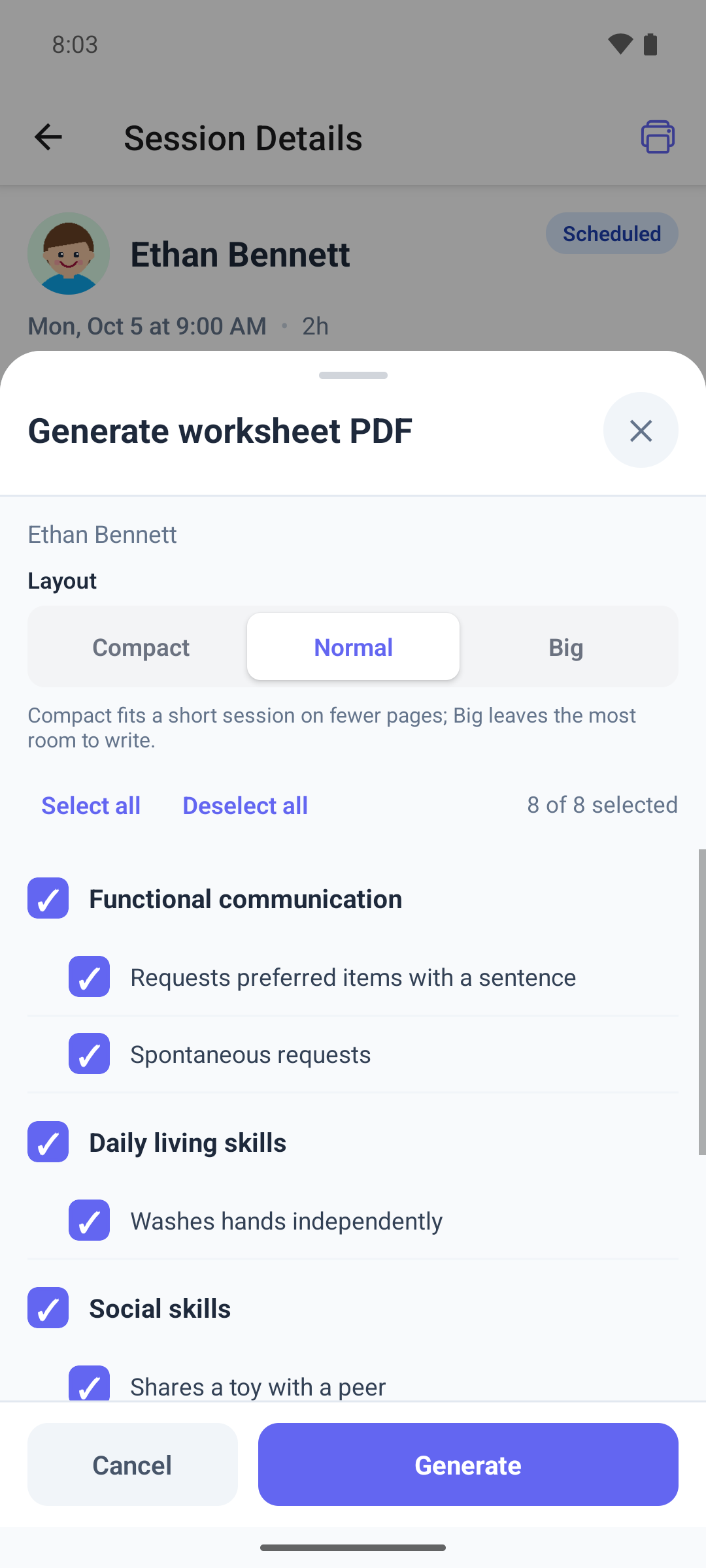
Open a session and tap the print icon at the top right. You can also open the learner from My Learners and tap the Worksheet PDF card.
The sheet shows the learner's name and every target ticked, with how many are selected.
- Untick the targets you will not run, or use Select all and Deselect all.
- Choose a Layout: Compact, Normal or Big.
- Tap Generate.
- Your phone's share options open. Choose to print, or save or send the PDF.
Which targets you can print
- Active, generalization and maintenance targets. Planned, mastered and on-hold targets never appear, and neither do goals meant for practice at home.
- The mobile app ticks every maintenance target, due or not. Untick the ones you do not need.
- The learner's Worksheet PDF card works only when the learner has an active plan. From a session, the worksheet uses that session's plan.
If it does not work
- Nothing to print means the plan has no targets that can go on a worksheet.
- You are not assigned to this learner. means you cannot print for this learner. Ask your BCBA.
- Failed to load the targets for this plan. Check your connection and select Try again.
- If some selected targets are no longer eligible, close the window and open it again to refresh the list.
What happens next
- The PDF is named after the learner and the date. It is in your clinic's language, whatever language your app is in.
- Printing records nothing in ABACare. The sessions and their data stay as they were.
- To type the totals from your worksheet into the session, use quick entry in the web app.