Breadcrumb: BCBA › Dashboard
Read and act on notifications
See what ABACare notifies BCBAs, org owners and aides about, open each notification at the right screen, and mark notifications as read.
ABACare notifies you when something needs you that you did not start yourself: a target is ready to move on, a target in generalization is struggling, an authorization is running out, a recurring session was skipped, a progress report draft is ready, or someone commented on a photo or video you attached. In the web app they collect under the bell at the top of every page. Opening a notification takes you to the screen it is about.
Before you start
- BCBAs, org owners and aides have the bell in the web app. Parents have no notifications list.
- In the mobile app, only aides are notified, and only about feedback on their session media. BCBAs and org owners use the web app.
- There are no push notifications: the web app checks for new ones every minute while it is open.
What you are notified about
Each notification goes only to the people it concerns.
| Notification | Who gets it | Selecting it opens |
|---|---|---|
| A target met its criteria, for example Target "Names pictures in a book" — criteria met, suggesting advance to Maintenance | The learner's BCBA | The plan's goals, with the target highlighted |
| A regression is suggested for a generalization context, or a maintenance probe failed | The learner's BCBA | The target's page, or the plan's goals |
| ABACare moved a target back to an earlier context or to Active on its own | The learner's BCBA | The target's page |
| An authorization is nearly used up, used up, ends soon, or ended with hours left | The learner's BCBA and every org owner | The Authorizations tab of the learner's profile: see Monitor authorization use across your learners |
| A date of a recurring session was skipped because of a conflict | The person who created the recurring sessions | The calendar on that date, with the session highlighted |
| Progress report draft is ready for a learner | The person who asked for the draft | The progress report: see Edit, sign and export a progress report |
| New feedback on 1 item in a learner's session | The person who attached the photo or video, usually the aide, once someone else commented and the session is completed | The session, scrolled to the commented media |
If a learner has no BCBA assigned, target notifications go to whoever created the plan.
Open a notification
Web
When a new notification arrives, the bell shakes and its red badge shows how many are unread, up to 9+.
- Select the bell. Notifications opens with your 10 most recent notifications, read or unread. Unread ones are bold with a blue dot.
- Select a notification. It is marked read, the list closes and the screen it is about opens. A target, a session or a photo it concerns is highlighted for a moment.
Selecting the bell again closes the list. Older notifications are not listed, but unread ones still count in the badge.
Mobile
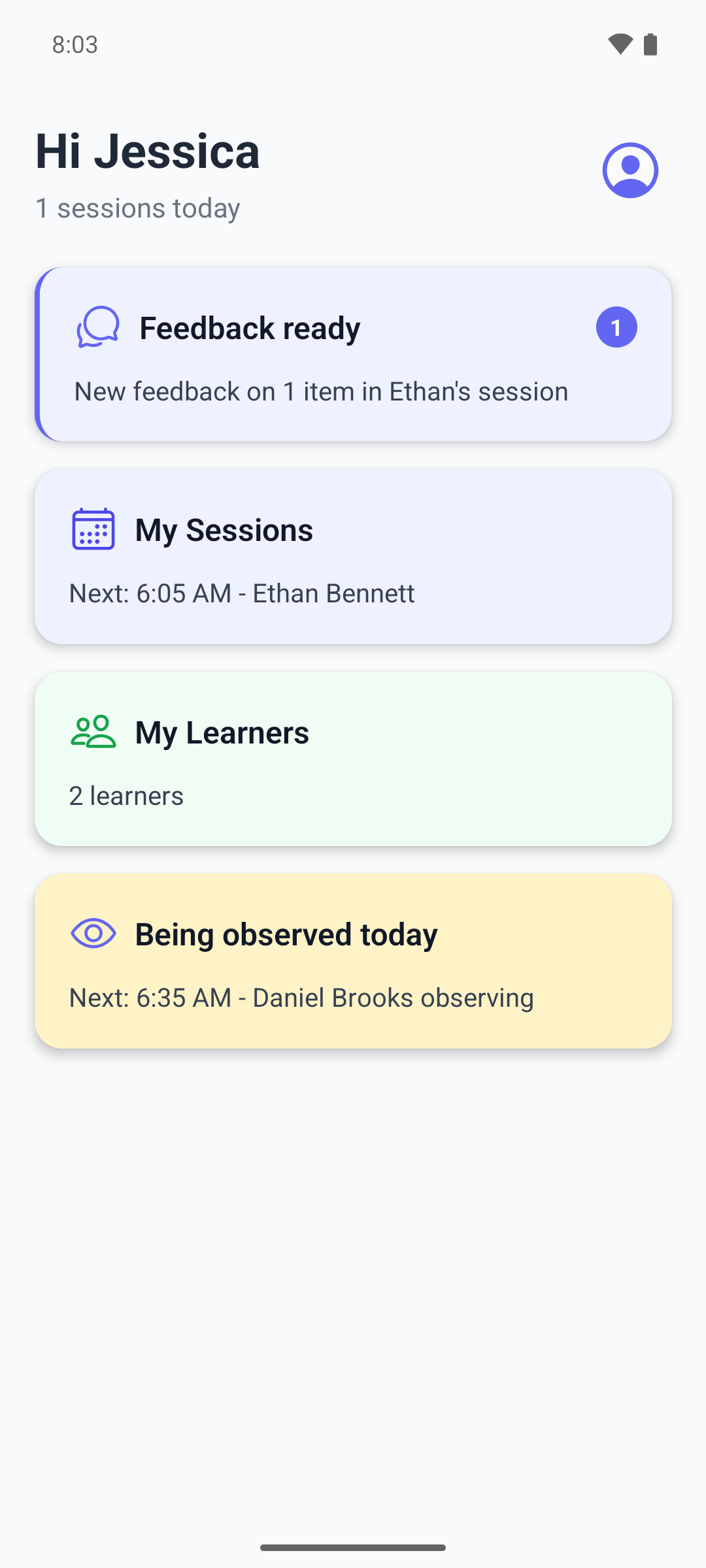
BCBAs and org owners have no notifications in the mobile app. Aides see a card on the home screen when a BCBA has commented on their session media.
The Feedback ready card shows how many notifications are unread and the newest one, for example New feedback on 1 item in Ethan's session.
- Tap the card. The session opens and the commented photos and videos are highlighted.
- Go back to the home screen. The card shows the next unread feedback, or disappears when there is none.
For an aide's side of feedback, see Review feedback on session media.
Mark notifications as read
- Select Mark all as read at the top of the list. Every unread notification is marked read, including older ones not in the list, and the badge clears. The link shows only while something is unread.
- Some notifications are marked read without the bell. Opening the commented photos or videos marks that feedback read. Acting on a suggestion yourself marks its notification read, and so does anyone at the clinic dismissing it.
What happens next
- Reading a notification does not act on it. A suggestion stays open until someone approves or dismisses it in the plan's goals, on the target's page or in the Needs Attention list.
- When someone else approves a move forward or changes the target's status, for example an org owner, your notification about the suggestion can stay unread. Select it or use Mark all as read.
- If the clinic's subscription is suspended, BCBAs and org owners still see notifications, but selecting one takes them to the billing page.