Breadcrumb: Aide › Data collection
Run a rate probe
Time an observation window on a rate target, count each occurrence and save the count and time as a run, with the rate per minute or per hour.
A rate target counts how often something happens in a set time, for example how many pictures the learner names in one minute. You start a timed probe, count each occurrence, and save the count with the time it took. ABACare shows the rate per minute or per hour, as your BCBA set it for the target, and compares it with the mastery rate.
Before you start
- The session must be In Progress and the target in the Active phase. For a target in generalization or maintenance, see Collect data during a session.
- BCBAs run rate probes in the web app only.
Run the probe
Web
Select Collect Data, then Target, tick the rate target and select Continue.
- Check the Probe Duration, the Mastery Criteria and the Direction. When your BCBA set the target to count different days, the criteria read in days, for example 1/min for 3 days.
- Select Start Probe. Use Pause, Resume and Stop as needed.
- Select + for each occurrence, and − to take one back.
- The probe stops by itself at the probe duration. Current Rate shows the result.
- To correct the numbers, change the Count or the duration under Manual Adjustments.
- Select Save Data. To start over instead, select Reset after you stop.
Mobile
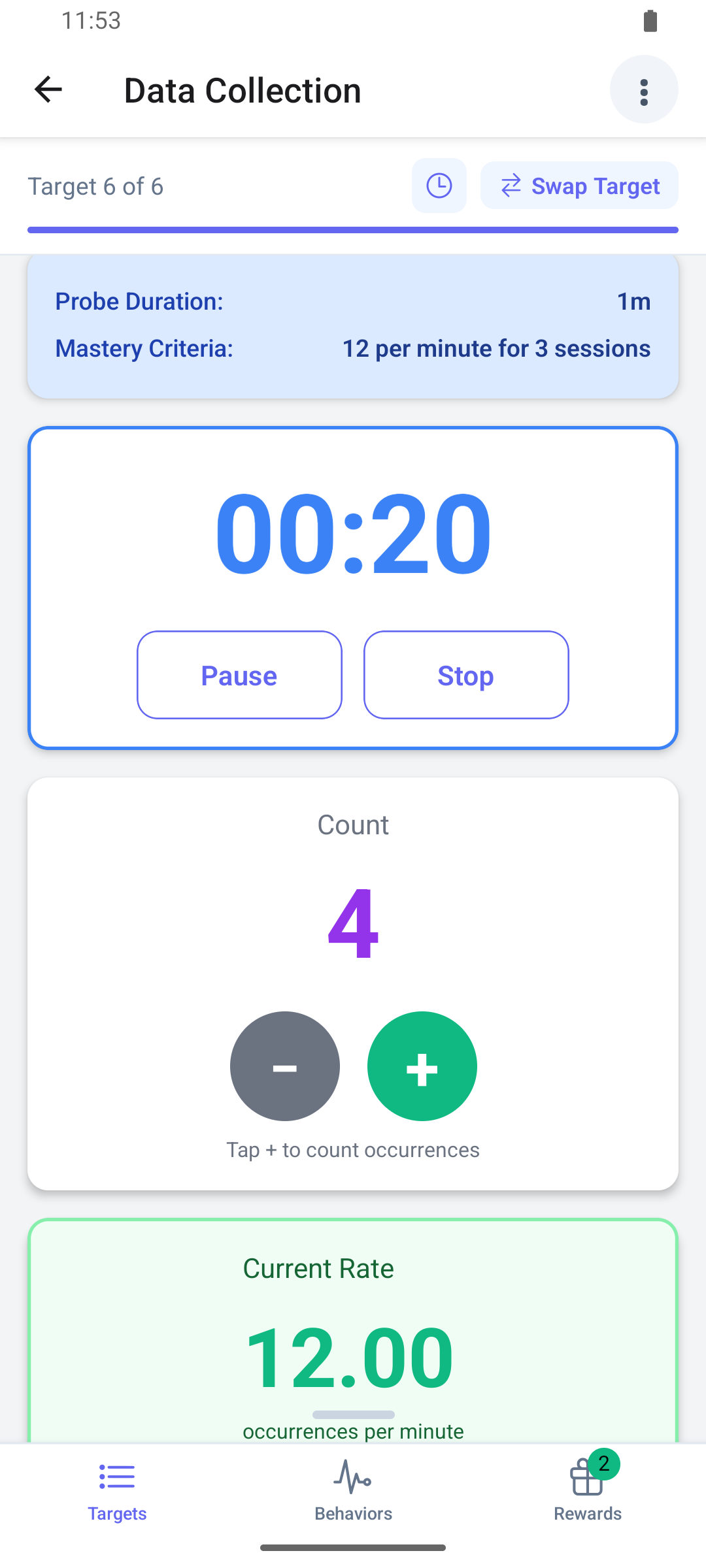
Swipe to the rate target. If it already has a run, tap the + icon on its summary to start a new one.
The page shows the Probe Duration:, or Untimed, and the Mastery Criteria:, over days when the target counts different days.
- Tap Start Probe. The + and − buttons become active.
- Tap + for each occurrence, and − to take one back. Current Rate updates as you go.
- Use Pause, Resume and Stop as needed. The probe stops by itself at the probe duration and shows Probe completed.
- Tap Review & Save. In Review Rate Data, correct the count or the duration if needed.
- Tap Save Data.
The page switches to the summary of the saved run. To start over before saving, tap Reset after you stop.
Good to know
- An untimed probe runs until you stop it, up to six hours.
- Reset throws the probe away without asking.
- In the web app you can save while the probe is still running: ABACare saves the time so far.
- In the mobile app, Review & Save works once you pause or stop. If you resume after a pause and then tap it, the window shows the time at the pause while the timer keeps running.
- In the mobile app, + and − still work after Stop, so check the count before you save.
- When you submit the session, the mobile app offers to save a running or paused probe with Save & Submit. A stopped probe you have not saved is not included and gets no warning.
What happens next
- The run appears with its count, time and rate: in the target's summary on the phone and on the session's Data card on the web.
- To probe again in the same session, add another run: see Collect data during a session.