Breadcrumb: BCBA › Supervision
Start, complete or cancel a supervision
Move a supervision from Scheduled to In Progress and on to Completed, or cancel it, in the web app or the mobile app.
A supervision goes from Scheduled to In Progress when you start it, and to Completed when you finish. If it will not happen, or stops before it is done, you cancel it. Completed and Cancelled are final: the supervision can no longer change, and for a completed one ABACare records how long it really lasted.
Before you start
- Only the supervision's supervisor and org owners can start, complete or cancel it. Another BCBA who opens it in the web app sees the buttons, but the change fails with an error.
- In the mobile app you see only the supervisions where you are the supervisor. This applies to org owners too.
Change the status
Web
Select Supervision in the menu and open the supervision. You can also open it from the session calendar, or from Linked supervisions on a therapy session's page.
- A Scheduled supervision shows Start Supervision, Edit Supervision and Cancel Supervision under its title. Select Start Supervision and confirm Start supervision now? with Start Supervision.
- The supervision is In Progress. When you are done, select Complete Supervision and confirm Mark supervision complete? with Complete Supervision.
- To cancel instead, select Cancel Supervision. Cancel this supervision? warns that it cannot be reopened. Select Cancel Supervision to confirm, or Keep Open.
No message appears. The page shows the new status, and the buttons disappear once the supervision is completed or cancelled.
Mobile
On the home screen, tap the Supervisions today card, or Supervisions on a day without one. Supervisions lists Upcoming and Past supervisions; filter them with All, Scheduled, In progress, Completed or Cancelled. All leaves out cancelled ones.
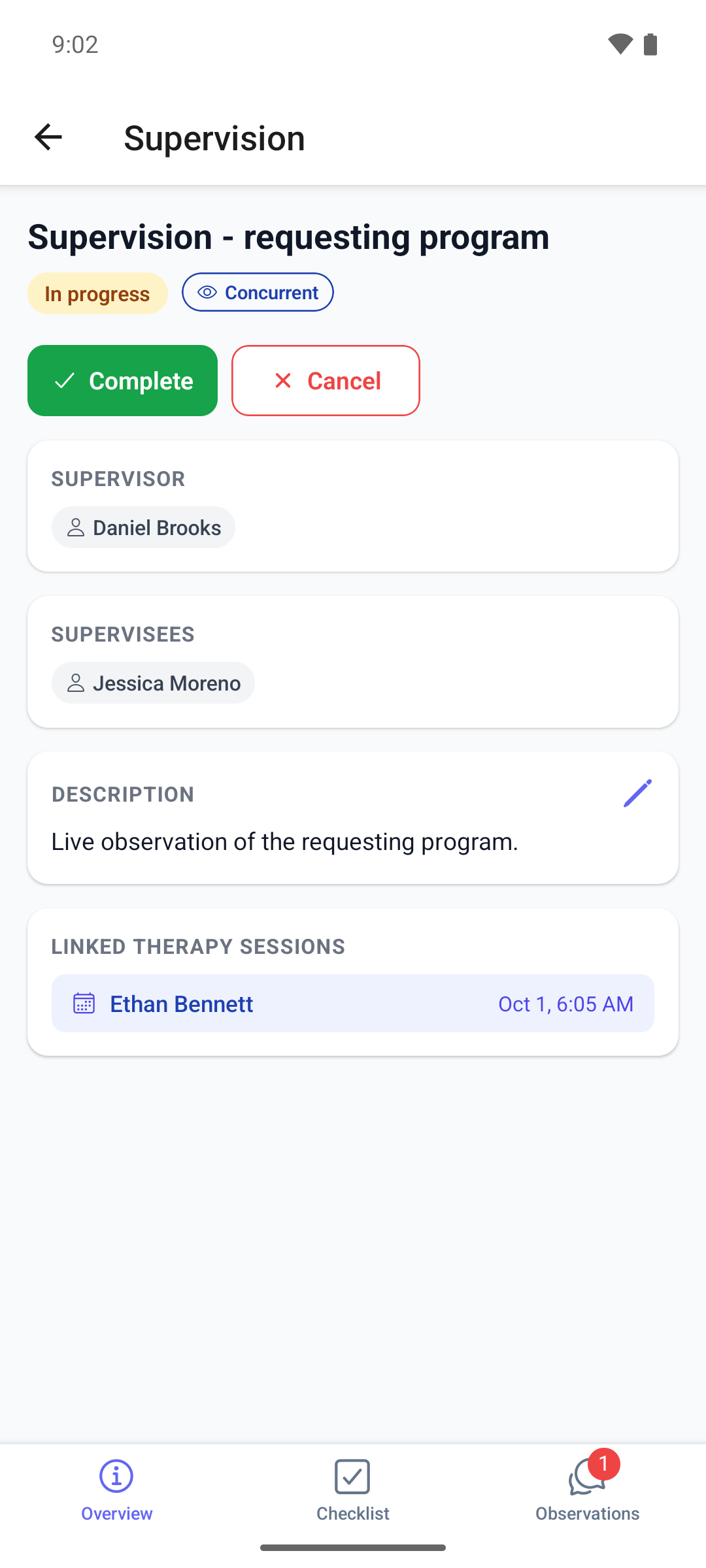
Tap a supervision. It opens on Overview, with the buttons under the title.
- On a Scheduled supervision, tap Start. It starts at once, with no question.
- On an In Progress supervision, tap Complete. It is completed at once.
- To cancel, tap Cancel and confirm Cancel supervision? with Cancel, or tap Keep open.
The status updates and, once the supervision is completed or cancelled, a banner says This supervision is Completed — no further changes. or This supervision is Cancelled — no further changes.
Things to know
- A supervision must be started before it can be completed.
- There is no time check. You can start or complete a supervision before, during or after its scheduled time.
- Completing does not look at the checklist. Items still open stay open for good.
- To change the time, the supervisees or the linked sessions while the supervision is open, see Schedule a supervision.
What happens next
- Completed: the web page shows This supervision is Completed. No further changes can be made., the actual duration, from the moment you started it to the moment you completed it, and a Status history card. The checklist and observations stay readable.
- Cancelled: the web page shows only This supervision is Cancelled. No further changes can be made. The cancel warning says observations are kept read-only, but the web page no longer shows them; they are still listed in the mobile app. In the mobile list a cancelled supervision appears only under Cancelled.
- Nobody is notified. Your aides see the new status the next time they open the supervision in the mobile app, together with the checklist items and observations you shared with them.