Breadcrumb: Aide › Data collection
Time a duration target
Measure how long the learner keeps up a behavior on a duration target, with a stopwatch on the phone or a typed time on the web, and save it as a run.
A duration target measures how long the learner keeps something up, for example staying seated through a table activity. Each run records one time. In the mobile app you time it live with a stopwatch. In the web app you type the time in minutes and seconds. ABACare shows straight away whether the time meets the mastery duration your BCBA set.
Before you start
- The session must be In Progress and the target in the Active phase. For a target in generalization or maintenance, see Collect data during a session.
- BCBAs record durations in the web app only.
Record the duration
Web
Select Collect Data, then Target, tick the duration target and select Continue.
- Check the Target Duration, the Mastery Duration and the Sessions Required, which reads Days Required when your BCBA set the target to count different days.
- Under Enter Duration, type the minutes and seconds, or select a preset such as 5:00. You can enter up to 120 minutes.
- Will record shows the time, with Meets mastery criteria or Below mastery criteria.
- Select Record Duration. The time is locked in and marked Met Mastery or Not Met. To change it, select Start New and enter it again.
- Select Save Data. It stays unavailable until you select Record Duration.
Mobile
Swipe to the duration target. If it already has a run, tap the + icon on its summary to start a new one.
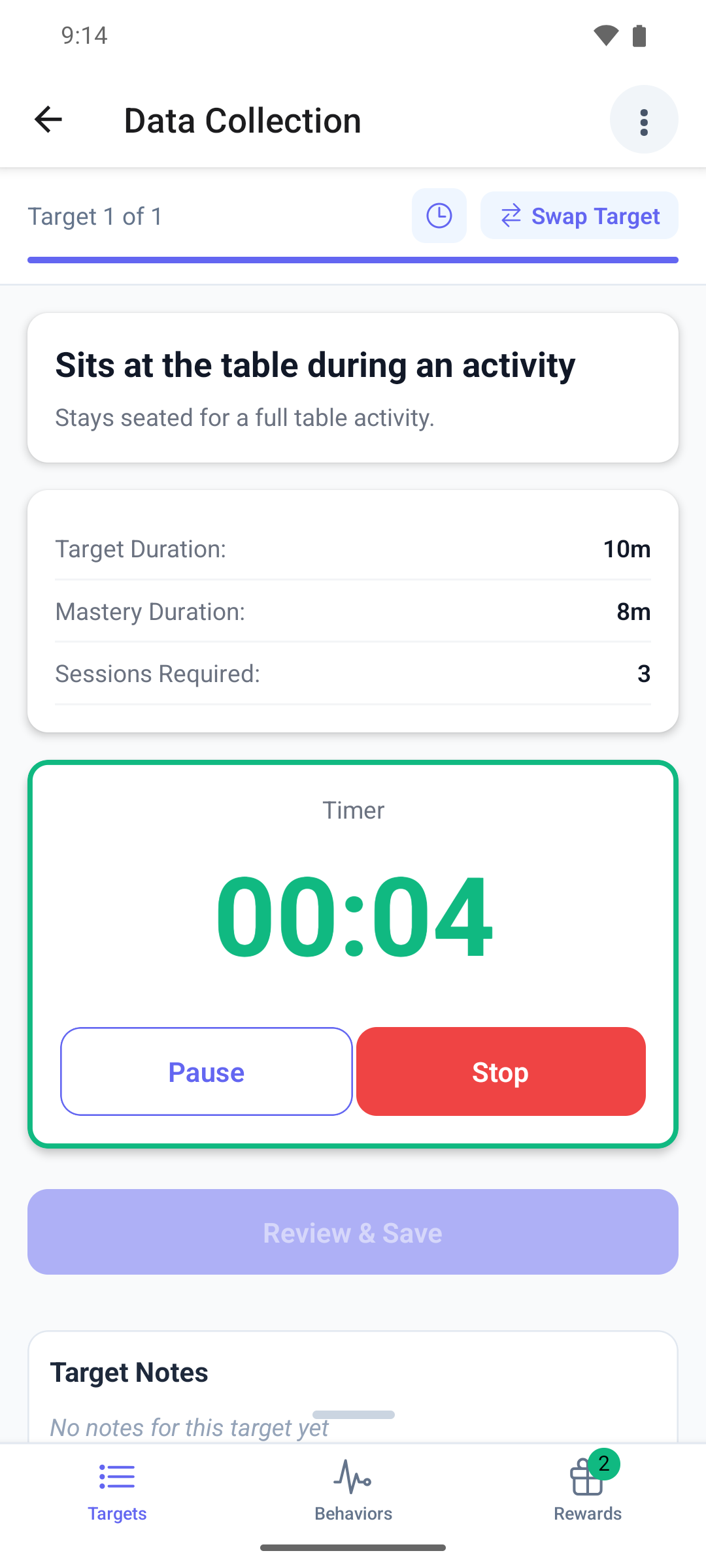
The page shows the Target Duration:, Mastery Duration: and Sessions Required: (Days Required: when the target counts different days), and the Timer.
- Tap Play when the behavior starts.
- Tap Pause if it stops for a moment, then Resume.
- Tap Stop when it ends. The timer stops by itself when it reaches the target duration.
- A card shows Met Mastery or Not Met Mastery and the Recorded Duration:. Tap Start New to throw the time away and start over, or Review & Save.
- Check the time in Review Duration Data and tap Confirm & Save.
The page switches to the summary of the saved run.
Good to know
- The mobile timer never records more than the target duration. The web app has no such limit.
- The mobile timer keeps counting while you look at another target or another app, and stops at the target duration.
- Start New on the phone throws the time away without asking.
- An unsaved time stays on the phone until you save it or start over. Submitting the session does not save it and does not warn you, and it shows up again the next time you open the same target, even in a later session.
- If a save fails, the time stays so you can try again.
What happens next
- The run appears with its time and whether it met the mastery duration: in the target's summary on the phone and on the session's Data card on the web.
- To time the target again in the same session, add another run: see Collect data during a session.