Breadcrumb: Aide › Data collection
Review recent collections for a target
While you collect in the mobile app, see how the learner did on a target in the last few runs and read the latest target notes.
Applies toAide
Before you run a target, it helps to know how the learner did last time and which prompts were used. The mobile app shows the latest runs on the target and its latest target notes in a sheet over the collection screen, so you never leave the session to look.
Before you start
- This view exists only in the mobile app, during a session in progress that is assigned to you.
- It is not available on targets in generalization or maintenance.
- It needs a connection. Offline, the sheet shows Last collections unavailable offline.
Open the last collections
Open the session and tap Data Collection, then swipe to the target.
- Tap the clock icon at the top of the target page, or drag the handle at the bottom of the page upward.
- The sheet opens with the target's name at the top.
- Read the cards: one per session, newest first.
- Close the sheet with the close button, or swipe it down.
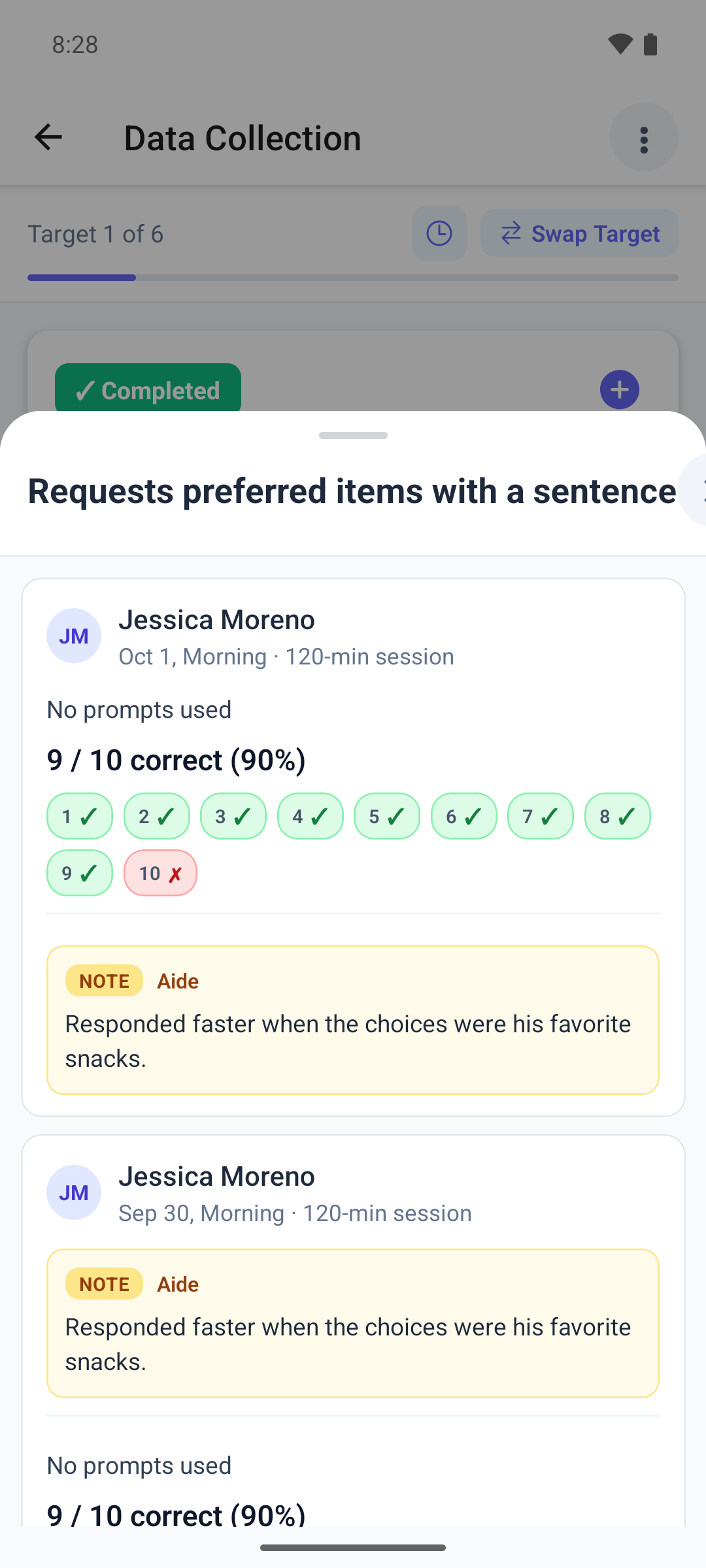
What the sheet shows
- Up to three runs and up to three target notes, mixed by time. Runs from today's session count too: three runs today push earlier sessions out of the sheet.
- Each session card shows who collected, the date, the time of day and the session's planned length, for example 120-min session. It is the scheduled length, not the time actually spent.
- Each run shows a short summary for its type: correct trials and percent with the prompts used for DTT, the count and times for frequency, the time for duration, the rate, the latency with a check or cross against the threshold, the completed steps for a task analysis, or the note of a generic target.
- A target note is marked Note, with the role of the person who wrote it. Long notes are cut short.
- Generalization and maintenance passes or fails recorded as a single tap never appear here.
- A target with nothing recorded yet shows No collections yet on this target.
What happens next
- The sheet only shows data; nothing you do in it changes the session.
- After you save another run or add a target note, open the sheet again to see it.
- To change a saved run, correct it in the web app.