Breadcrumb: Parent › Practice at home
Log home practice for a target
Practice a skill your child's BCBA shared for home, then record how it went, on your phone or on the web.
Your child's BCBA can share goals for you to practice at home, with instructions. Each goal is made of targets, the specific skills your child is learning, such as asking for a snack with a full sentence. After you practice a target with your child, you log how it went. Your BCBA reads what you log, so the clinic sees how your child does at home too.
Before you start
- Your BCBA chooses which goals you practice at home. Until they share one, the web app shows No practice targets available and the mobile app No Targets Assigned. How the BCBA does it: Assign a goal for home practice.
- You only see targets that are currently being worked on. When your child masters a target or the BCBA pauses it, it leaves your list.
- In the mobile app you need an internet connection to save.
Log a practice
Web
Select Practice at Home in the menu.
- With more than one child, pick the child in the selector at the top. With one child, their name shows instead.
- The page lists the targets under each goal, with the goal's instructions under its name. Each target shows Today's Progress or No practice logged today, and Target Instructions when your BCBA wrote some. At the top, Logs Today, Targets Practiced and, when you have feedback, New Feedback sum up your day.
- Practice with your child, then select Log Practice on the target.
- The window shows the target and its goal. Answer the questions for this target (see below). Activity Context and Notes are optional.
- Select Submit.
The message Practice data logged successfully appears, and Today's Progress on the target updates. If an answer is missing or does not add up, a message under the field says what to fix, for example Successes cannot exceed attempts.
Mobile
Start on the My Children screen.
Each child has their own card.
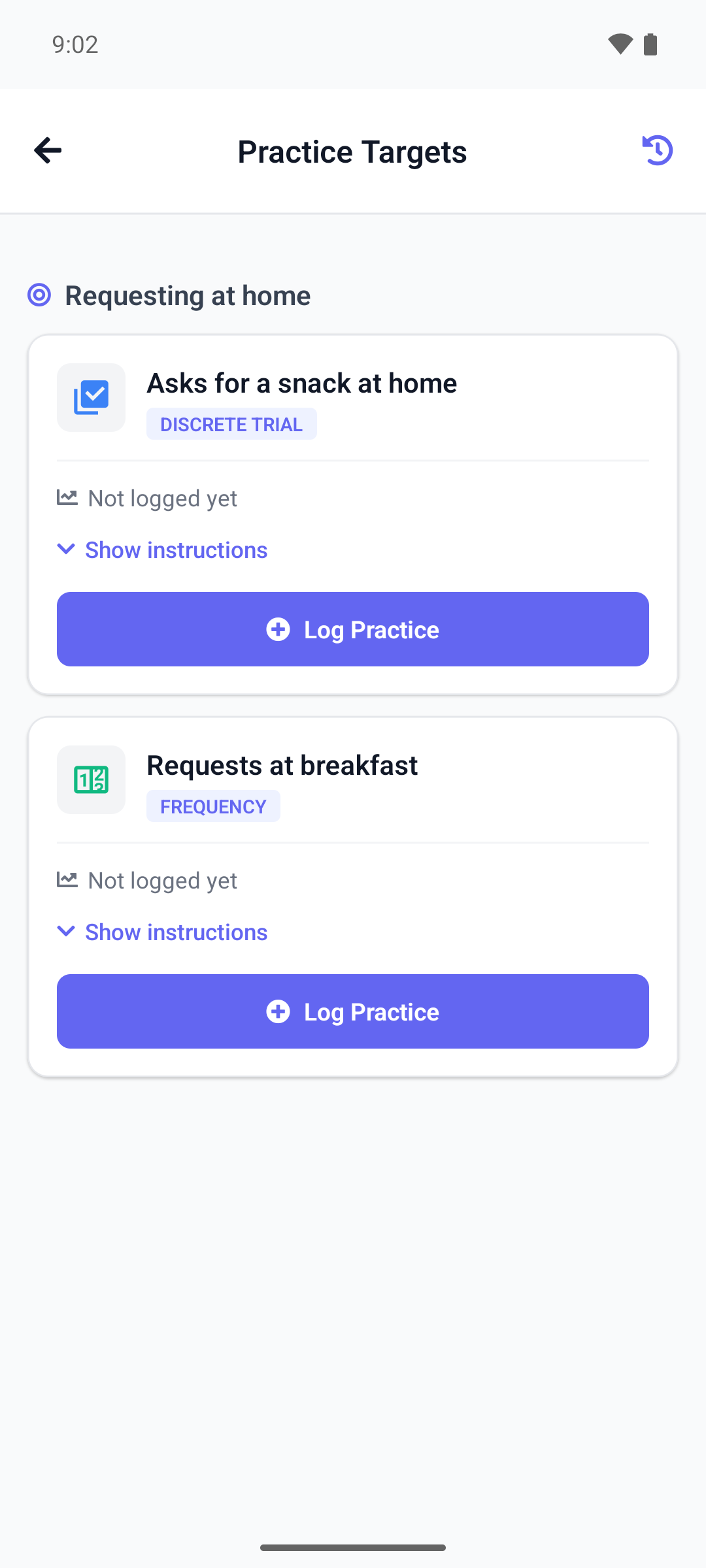
- Tap Practice Targets on the child's card.
- Practice Targets lists the targets under each goal. Each shows what you logged today, or Not logged yet. Tap Show instructions to read your BCBA's instructions.
- Practice with your child, then tap Log Practice on the target. For a target where you describe what you noticed, the button is Add Observation.
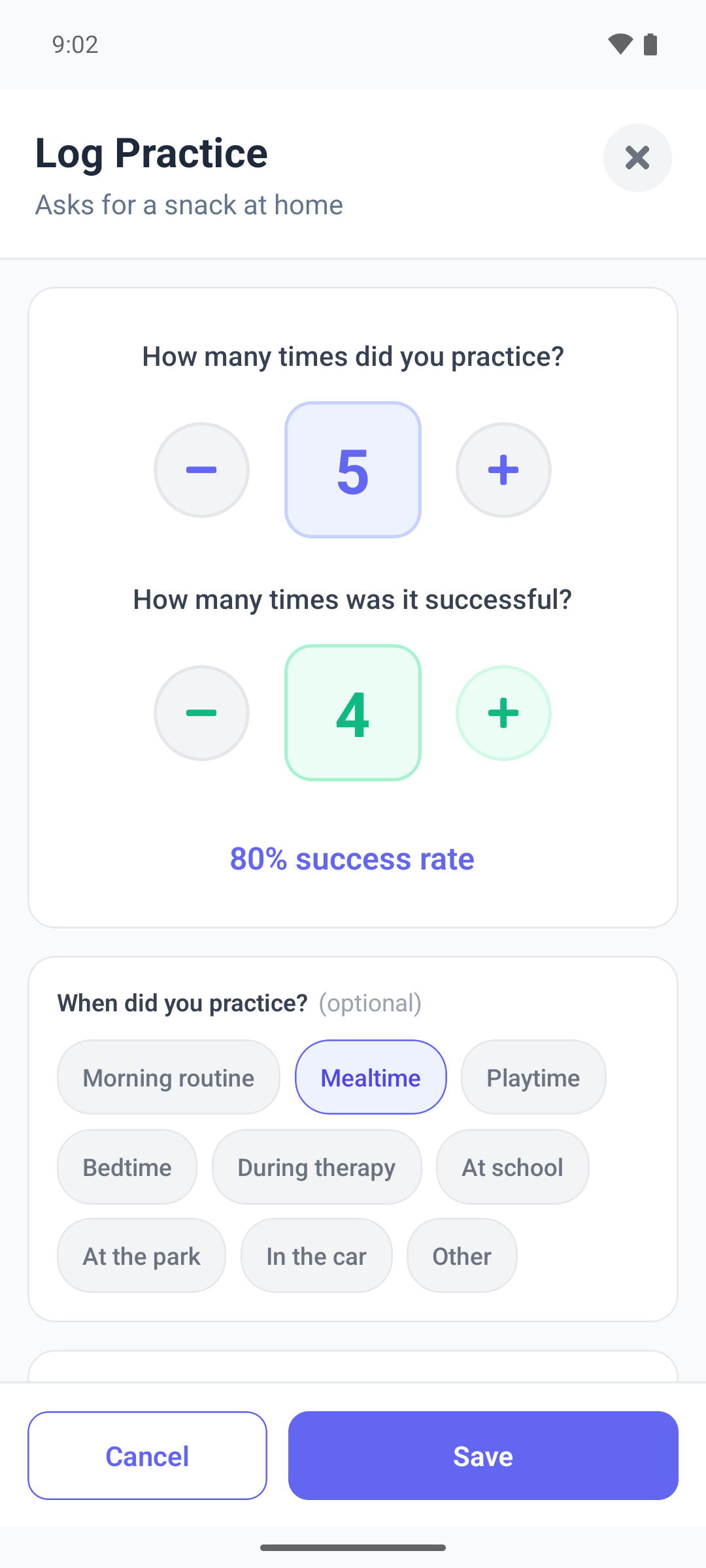
The Log Practice window opens with the target's name.
- Answer the questions for this target (see below).
- Under When did you practice?, tap a moment of the day, or Other to type your own. It is optional.
- Add Notes (optional) if you like, then tap Save.
The message Practice logged successfully appears and the target shows today's result.
What the window asks
Your BCBA decides how each target is measured, and the window asks for that. The questions are worded a little differently in the two apps.
Web
The questions for each kind of target:
- Tries and successes: How many attempts? and How many successful? You need at least one attempt, and no more successes than attempts.
- How often something happens: How many times?
- How long something lasts: Duration (seconds).
- How often something happens in a stretch of time: Count and Period (seconds). Pick a length such as 1 min, or type the seconds. The window shows the result under them.
- How long your child takes to respond: Latency (seconds).
- A description of what you noticed: What did you observe? It is required.
- The steps of a routine: under Task Steps, tick each step your child did, or select Mark All Complete.
Mobile
The same kinds of target, on the phone:
- Tries and successes: How many times did you practice? and How many times was it successful?, with plus and minus buttons.
- How often something happens: How many times did this occur? Tap to add one.
- How long something lasts: How long did it last? Choose Use timer and tap Start and Stop, or Enter manually in minutes and seconds.
- How often something happens in a stretch of time: How many times? and Over what time period?, with lengths such as 1 min or 30 min.
- How long your child takes to respond: How long until response? With Use timer, tap Stop when your child responds. You can also choose Enter manually.
- A description of what you noticed: type it where it says What did you observe? You cannot save it empty: Observation required appears.
- The steps of a routine: check off each step your child did, or tap Mark All Complete.
The phone does not check your numbers: an entry with 0 tries or 0 seconds is saved as you entered it. Check them before you tap Save.
Good to know
- An entry is saved with the time you save it, so log right after you practice.
- You cannot change or delete an entry. If you logged something by mistake, tell your BCBA.
- On the phone, if saving fails, for example without internet, Failed to log practice appears and the window stays open with your answers. Try again when you are back online.
- On the phone, Show instructions shows the target's own instructions, or the goal's when the target has none.
- For a target timed until your child responds, today's result does not show after you log it: the mobile app keeps showing Not logged yet, and the web app counts your entries instead. Your entry is saved; you can check it in your history.
What happens next
- Your entry waits for your BCBA, marked as awaiting review. Your BCBA reads it and can leave you feedback: see Review my logged data and feedback. How the BCBA reviews it: Review data parents log at home.
- Your BCBA is not alerted each time you log. They see your entries when they review.