Breadcrumb: Getting Started
Submit feedback or a bug report
Report a problem or suggest an improvement to the ABACare team from the web app or the mobile app.
If something in ABACare does not work as expected, or you have an idea that would make your work easier, tell the ABACare team from inside the app. Reports go to the team that builds ABACare, not to your clinic. Org owners, BCBAs, aides and parents can all send them. For questions about a learner or a session, talk to your clinic instead.
Before you start
- Leave out health information: no learner names, dates of birth or treatment details, in the text or in screenshots. The form reminds you with a Privacy Notice.
- Parents: send reports from the web app. In the mobile app, Report Issue does not open the form for parents yet.
Send a report
Web
In the web app, the report form is one click away from every page.
- Select Help at the bottom of the page. The Report Issue page opens.
- Under Type, choose Bug Report or Suggestion.
- Enter a Subject, a short summary, and a Description. For a bug, say what you did, what you expected and what happened instead.
- To add a screenshot or a PDF, drop it on the Attachment box or click the box to choose a file. Images and PDFs up to 10 MB are accepted.
- Select Submit Report.
Mobile
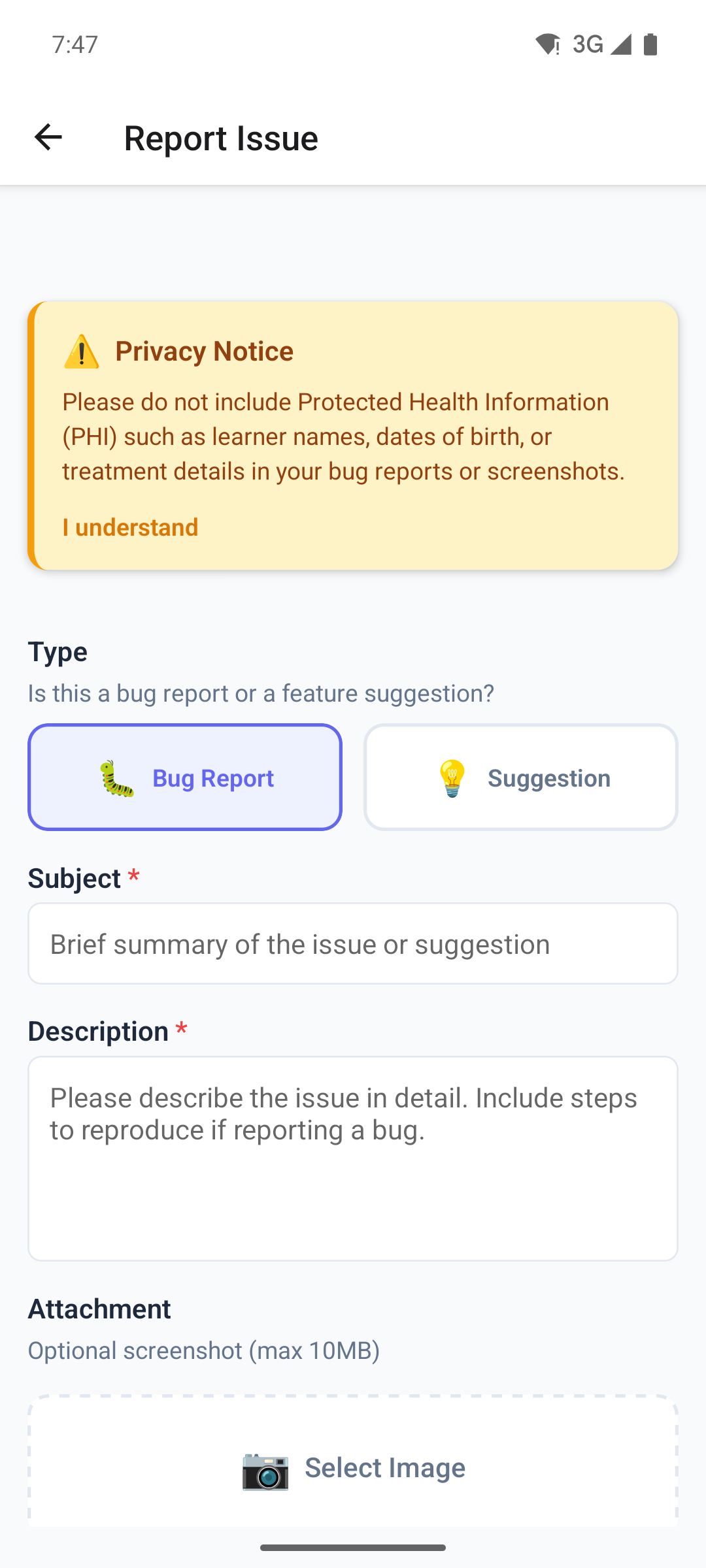
In the mobile app, the report form is in your profile. You need an internet connection to send it.
Start from the home screen.
- Tap the person icon at the top right, then Report Issue under Feedback.
- Under Type, choose Bug Report or Suggestion.
- Enter a Subject and a Description.
- To add a screenshot from your photos, tap Select Image. Images up to 10 MB are accepted. Tap Remove to take it off again.
- Tap Submit Report. The button works once both the subject and the description are filled in.
What happens next
You see Thank you! Your report has been submitted successfully. The web app takes you back to your dashboard, and the mobile app goes back to your profile. The ABACare team reviews every report.
If sending fails, you see Failed to submit report. Please try again. and what you typed stays in the form. Wait a moment and select Submit Report again.