Breadcrumb: BCBA › Supervision
Record supervision observations
Write what you observe during a supervision, choose whether your aides can read it, link it to a session, learner, target or behavior, and correct it later.
Observations are your notes from a supervision: what went well, what the aide should change, what to follow up. Each one is either shared with the aides you supervise or kept for you, and it can point to the therapy session, learner, target or behavior it is about.
Before you start
- Only the supervision's supervisor and org owners can add observations. You can change or delete only the observations you wrote; org owners can change any.
- Observations can be added, changed and deleted until the supervision is completed or cancelled. After that they are read-only.
- In the web app, observations show only once the supervision is In Progress. The mobile app also lets you add them while it is Scheduled.
Who sees each observation
- Visible to supervisees (the eye icon, the default): the aides you supervise read it in the mobile app.
- Supervisor only (the lock icon): only the current supervisor and your clinic's org owners see it. Aides and other BCBAs never do. If another BCBA becomes the supervisor, they see these observations and you no longer do.
Add an observation
Web
Open the supervision from Supervision in the menu. The Observations card shows how many there are, or No observations yet.
- Select Add Observation. A form opens above the list.
- Write the Observation.
- Select the eye icon if it should be for you only. It turns into a lock.
- To say what it is about, open Link to context and pick a Linked therapy session, a Learner, and then a Target or a Behavior of that learner. Changing the learner clears the target and the behavior.
- Select Save Observation. A confirmation appears (it reads Supervision scheduled.) and the observation is added to the list.
An empty observation is not saved: This field is required. appears. Discard closes the form without asking. If you select Add Observation again, or another observation's pencil, while the form is open, the form is replaced and what you typed is lost.
Mobile
Open the supervision from the Supervisions list, as described in Start, complete or cancel a supervision, and tap the Observations tab. Its badge shows how many there are.
Each observation shows its eye or lock icon, the date and time and the first lines of its text.
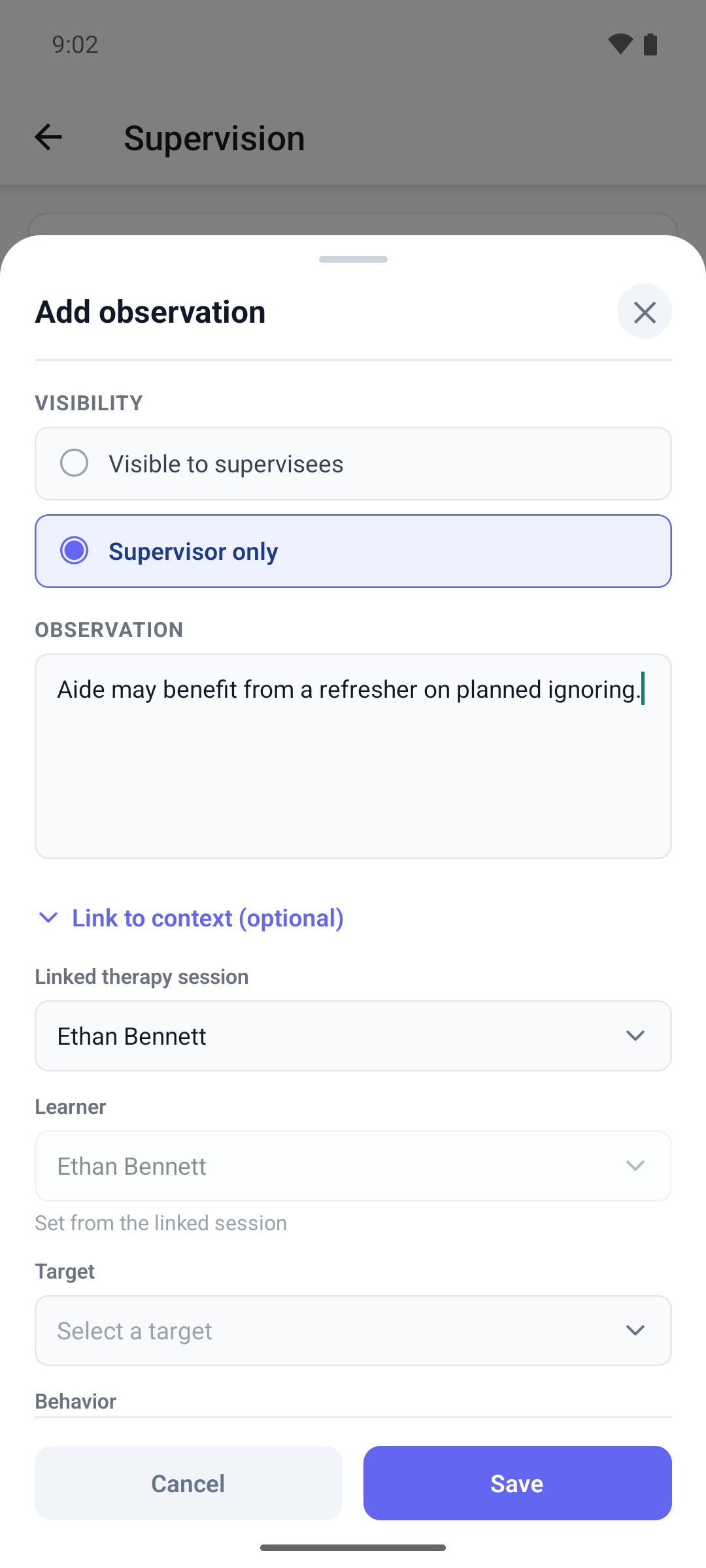
- Tap Add observation.
- Under Visibility, choose Visible to supervisees or Supervisor only.
- Write the Observation.
- To link it, open Link to context (optional). Picking a Linked therapy session sets the Learner to that session's learner (Set from the linked session). Then pick a Target or a Behavior if you want. Clear empties a choice.
- Tap Save.
Cancel, the close button or a tap outside the window closes it without asking, and what you typed is lost.
Change or delete an observation
Web
Each observation shows its author and time, its eye or lock icon, the learner, target and behavior it is linked to, and Last edited by once someone changed it.
- To change it, select its pencil, edit it and select Save Changes. Supervision updated. appears.
- To delete it, select its trash icon and confirm Delete observation? with Delete. Supervision removed. appears.
Mobile
Tap an observation you wrote to open Edit observation.
- Change it and tap Save.
- To delete it, tap Delete and confirm Delete this observation? with Delete, or tap Keep.
A deleted observation is gone for good. Neither app can remove a link once it is saved: to drop one, delete the observation and write it again.
What happens next
- Nobody is notified. The aides read shared observations the next time they open the supervision in the mobile app; an open screen does not refresh by itself.
- When the supervision is completed, its observations stay readable in both apps.