Breadcrumb: Parent › Practice at home
Review my logged data and feedback
Look back at what you logged at home, see whether your BCBA has reviewed it and read their feedback, on your phone or on the web.
Everything you log at home is kept in a history for each child. There you see whether your BCBA has reviewed each entry, and you read the feedback they wrote for you. You are not notified when feedback arrives, so check your history from time to time.
Before you start
- Your child's BCBA, or the clinic's owner, reviews your entries. Feedback is optional: an entry can be reviewed without any. How they do it: Review data parents log at home.
- The web app shows your home practice only. The behaviors you logged show only in the mobile app.
Open your history
Web
Select My Data History in the menu.
- With more than one child, pick the child in the selector at the top.
- Choose a period: Today, This Week, This Month or All Time. The page opens on This Week.
- To see only some entries, pick Awaiting Review or Reviewed in the review status list. All shows everything again.
- Each entry shows the date and time, Reviewed or Awaiting Review, the target and its kind, your result, such as 3/5 successful (60%), and your Activity and Notes. When your BCBA wrote feedback, it shows under BCBA Feedback, with Reviewed on and the date.
- Select Load More at the bottom for older entries.
When nothing matches, No practice history found appears. Choose another period, or All in the review status list.
Mobile
Start on the My Children screen. You can also tap the history icon at the top right of Practice Targets.
Your history opens for one child at a time.
- Under Quick Actions, tap View My Data. With more than one child, pick the child in Select Child.
- My Data opens on Targets: your practice entries grouped by day, under Today, Yesterday and then the date. Each shows the target, the time, when you practiced, your result and your notes.
- At the bottom of each entry, Reviewed by BCBA or Awaiting BCBA review shows whether your BCBA has read it, and their feedback shows under BCBA Feedback.
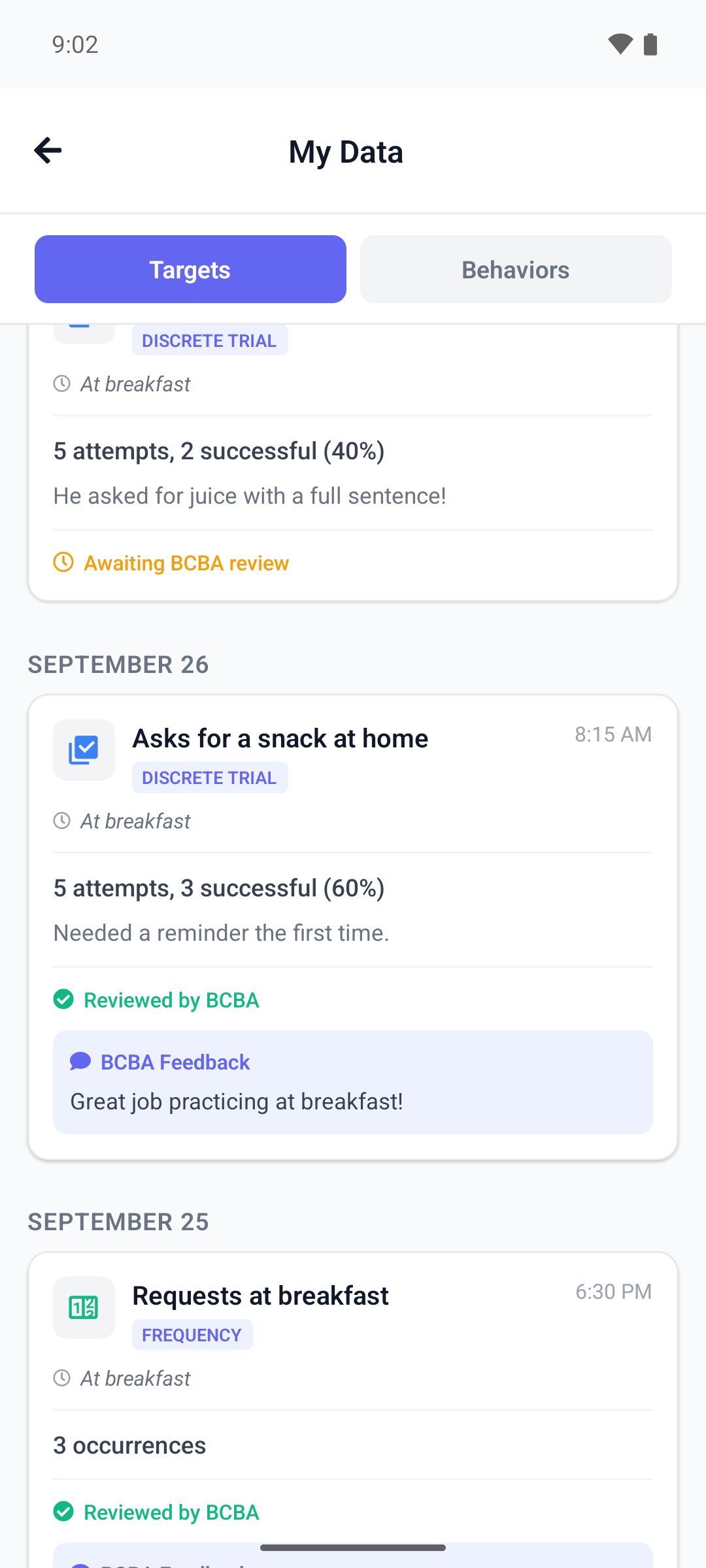
Behaviors have their own tab.
- Tap Behaviors. Each entry shows the behavior, where it happened, what happened before, the behavior and what happened after, the intensity, such as Intensity: 3/5, how long it lasted and the review. A behavior you named yourself has an Ad-Hoc badge.
- Pull down to refresh the tab you are on.
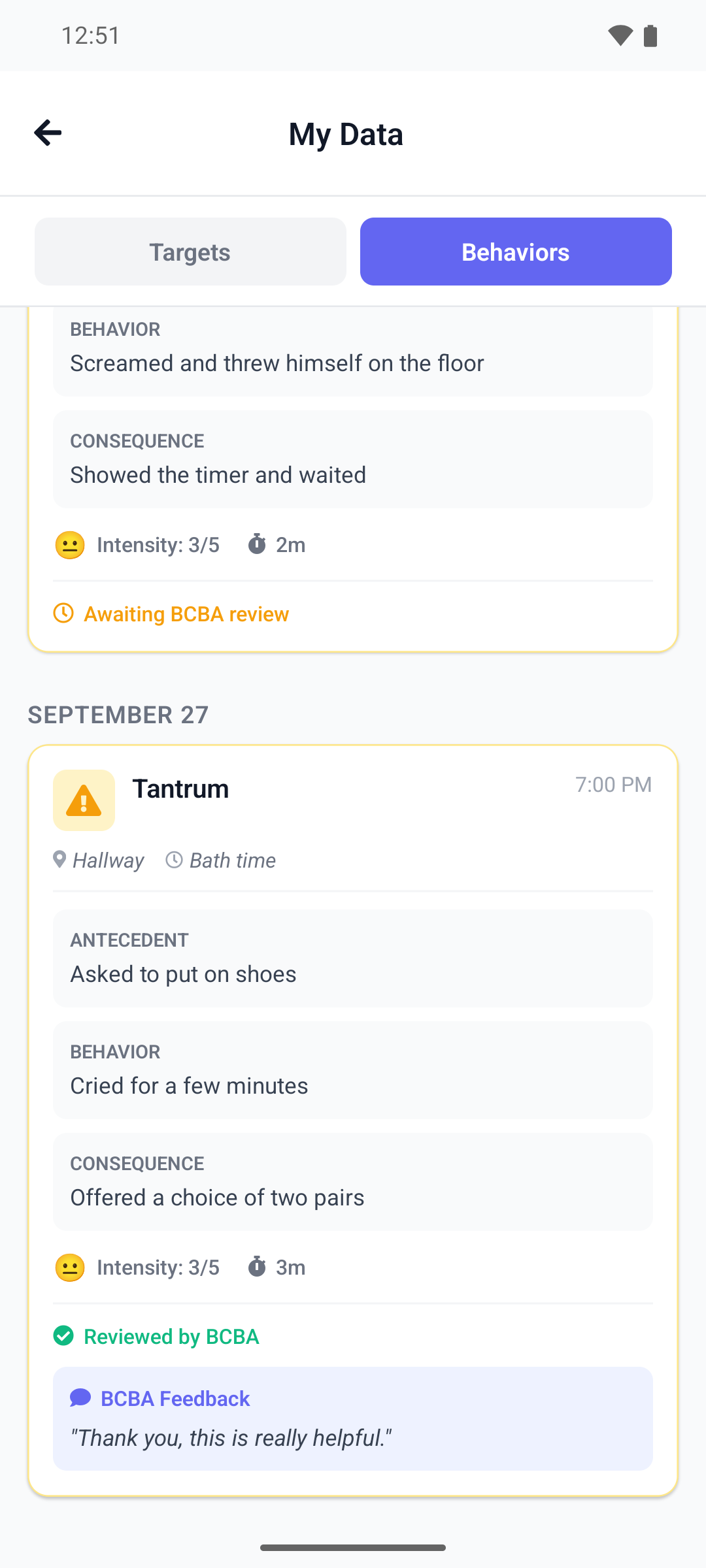
To see another child's history, go back and pick that child.
Good to know
- Every parent linked to your child sees the same history. The entries do not say who logged them.
- On the web, the review status list only checks the ten newest entries of the period until you select Load More. If it shows No practice history found, set it back to All.
- On the web, selecting the highlighted period again clears it: the page then shows all your entries, with no period highlighted.
- On the web, New Feedback on Practice at Home counts your entries that have feedback. It does not go down after you read them.
- On the phone, each tab shows your 100 most recent entries. For older practice entries, use the web app.
- On the phone, a practice entry you just logged can take a few minutes to appear. Pull down to refresh.
What happens next
Reading your history changes nothing, and you cannot reply to feedback in ABACare. To talk about it, contact your BCBA.