Breadcrumb: Aide › Data collection
Collect a granular generalization run
In a clinic that uses Granular collection, pick the setting you are testing and record a full run that ABACare scores as a pass or fail.
A target in generalization is tested in new settings, with new people or new materials. Each of these is a context. When your clinic uses Granular collection, you do not just tap a pass or fail: you pick the context, run the target with its usual collector (trials, a count, a timer or steps) and save. ABACare scores the run against the criteria your BCBA set for that context and shows Pass or Fail.
Before you start
- This applies when your clinic's generalization and maintenance collection is set to Granular, which is how the session was started. In Simple mode you record a pass or fail instead: see Record a generalization or maintenance pass or fail.
- The session must be In Progress and assigned to you, with the target selected.
- Generic targets in generalization or maintenance always get the one-tap pass or fail, even in Granular mode: see Record a generalization or maintenance pass or fail.
- BCBAs and org owners collect runs the same way in the web app.
Collect the run
Web
Open the session and select Collect Data, then Target. Tick the generalization target and select Continue.
- Under Context, open Choose a context and pick the one you are testing. Each context shows its status. Until you pick one, the window shows Choose a context to start collecting and Save Data stays disabled.
- Record the run with the target's usual collector, for example the trials of a DTT target.
- Select Save Data.
- The result replaces the collector: Pass or Fail, with the context. Select Dismiss, or wait a moment.
The window closes and the next target you picked opens.
Mobile
Swipe to the generalization target on the Targets tab.
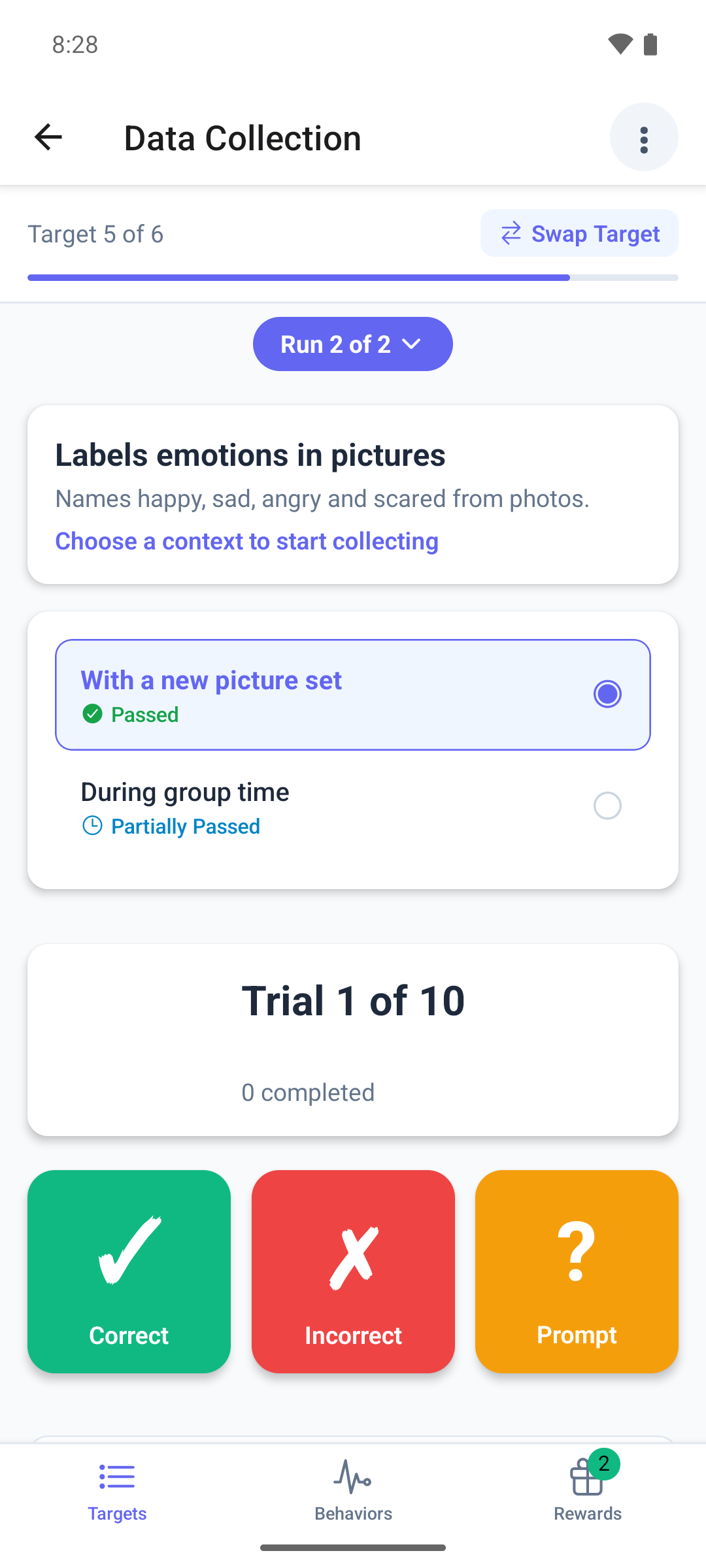
The page lists the target's contexts, each with its description and a Passed or Partially Passed badge.
- Tap the context you are testing. The target's usual collector opens under it.
- Record the run and save it from the collector's summary, as for any target of that type.
- The result fills the page: Pass or Fail with the context. Tap to continue, or wait about two seconds.
The page then shows the run with Context: and the context name. To test another context, tap + on the run for a new one.
What else the target can show
- Current context: followed by a name means your BCBA wants the contexts tested in order. That context is already chosen for you.
- All contexts passed means there is nothing left to test on this target. In the web app, select Skip this target.
- This target isn't ready for data collection yet means it has no context to test yet. In the web app, select Skip this target and tell your BCBA.
- If you pick another context after recording data, Discard this run? asks first. Discard and switch clears what you entered.
Good to know
- A run on a context that already passed is saved but does not change its standing.
- Standing moves only when the session is completed. Until then your runs show on the session but do not count towards the context.
- There is no offline saving. If a save fails, the app keeps what you entered so you can try again.
- In the mobile app, a run you recorded but did not save cannot be saved when you submit. The app warns that it will be lost, and you can go back and save it first.
What happens next
- Each run is saved with its context and its result. Your BCBA sees them when reviewing the session.
- When the session is completed, ABACare updates each context's standing and checks whether the target is ready for maintenance.
- To change a saved run, see Correct my data during a session. ABACare scores it again.