Breadcrumb: Aide › Running sessions
Submit a session
End an in-progress session, confirm when it really started and ended, and hand it to your BCBA for review.
When you finish a session, you submit it. Submitting ends the session, records its real start and end times, and sends it to your BCBA for review. Before it goes, ABACare asks you to confirm the times, so a session that started late or ran over is recorded as it happened.
Before you start
- You can submit only a session assigned to you that is In Progress.
- Write your session notes first. The session summary is written from your data and notes when you submit.
- Targets without data do not stop you from submitting. The app tells you how many targets have no data yet. To record them, see Collect data during a session.
Submit the session
Web
Open the session in progress.
- Select Submit Session.
- Confirm with Submit in Submit this session?. If you recorded nothing, the window is titled Submit without data? instead.
- Confirm session times opens with the date, the start time and the end time filled in. The end time is now.
- Correct the date or times if they are wrong. The start must be before the end.
- Select Confirm & Submit.
The message Session status changed successfully appears and the page reloads with the session Submitted. Select Cancel at any step to keep the session in progress.
Mobile
Submit from the data collection screen.
You can also submit from the Session Complete message that appears once every target has data: tap Submit Session there, or Review to keep working.
- Tap the ⋮ menu at the top right, then Submit Session.
- Read the message and tap Submit. It tells you how many targets have data.
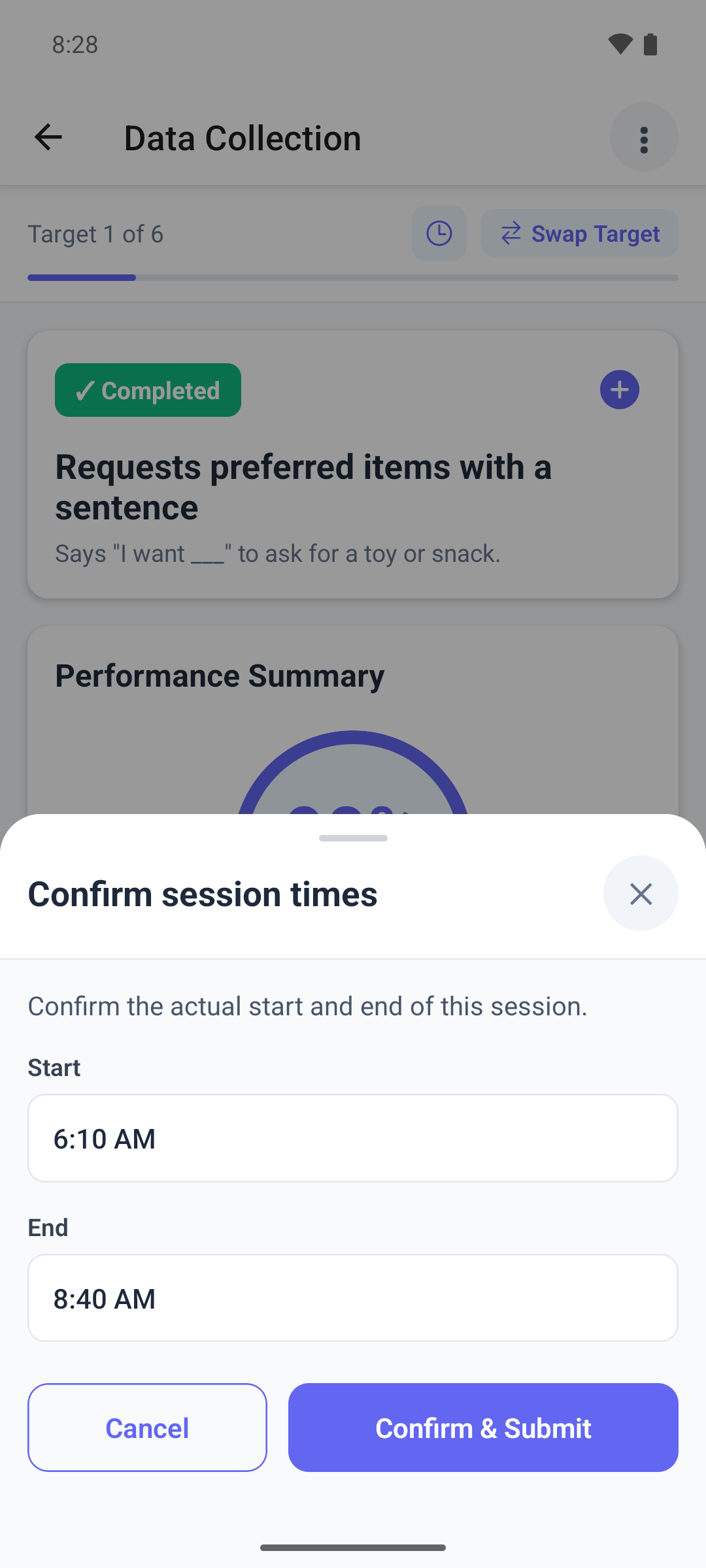
- Confirm session times opens with the start and end times filled in. The end time is now.
- Tap a time to correct it.
- Tap Confirm & Submit.
The app shows Session Submitted and takes you back when you close it.
Messages you may see in the mobile app
- You have behavior recordings in progress. Stop and save each running behavior before you submit. See Record a behavior count or duration summary.
- You have behavior recordings waiting to be confirmed. Open each behavior card and save its summary.
- If some DTT trials or a running rate probe timer are not saved yet, the message lists them. Save & Submit saves them first and then continues.
- If some recorded data cannot be saved during submit, the message says it will be lost. Tap Cancel and save it first, or Submit anyway.
- Submit Empty Session means you recorded no data and no notes. Tap Submit only if the session really had none.
The Session Complete message skips these checks and does not save unsaved DTT trials or rate probe timers. Save your work before you use it.
About the times
- In the mobile app you change only the times. If a session ran past midnight, the app moves the end to the next day when the session is 12 hours or shorter.
- In the web app you can change the date too, but the start and end share one date, so you cannot enter a session that ran past midnight.
- When you change the times, ABACare rejects a session longer than 12 hours and times more than 24 hours in the future.
- If you confirm without changing anything, ABACare keeps the start it recorded and uses the moment you submit as the end.
What happens next
- The session is Submitted. In the mobile app it shows Pending Approval.
- Your BCBA reviews it and marks it Completed. Your clinic may also complete submitted sessions automatically after a set number of days.
- The session summary is written in the background.
- You can no longer add data, unless your clinic lets aides correct submitted sessions in the web app.