Breadcrumb: Aide › Data collection
Score task analysis steps
Record which steps of a task analysis the learner completed and the prompt level used on each step.
A task analysis target breaks a skill, such as hand washing, into a chain of steps. For each run you tick the steps the learner completed and, when your BCBA tracks prompts on the target, the prompt level you used on each one. ABACare counts the completed and independent steps, and those counts feed the session score and the mastery check.
Before you start
- The session must be In Progress and assigned to you, with the target selected. See Collect data during a session.
- BCBAs score task analysis steps the same way in the web app.
Score the steps
Web
Open the session and select Collect Data, then Target. Tick the task analysis target and select Continue.
- The window shows Steps Completed, Independent, Prompted and Percent Complete at the top, then the steps in order.
- Tick each step the learner completed. The row is tagged Independent, Prompted or Not Done.
- If the target tracks prompts, a completed step shows a prompt list. Leave Independent (no prompt) or pick the prompt level you used.
- Mark All Complete ticks every step and clears the prompt levels. Clear All unticks every step and empties the notes.
- Add Notes if you want. The Mastery Criteria box under them shows what your BCBA set for mastery, in consecutive days when the target counts different days.
- Select Save Data.
A message confirms the save, the window closes and the next target you picked opens. Cancel asks before it throws away what you entered.
Mobile
Swipe to the task analysis target on the Targets tab.
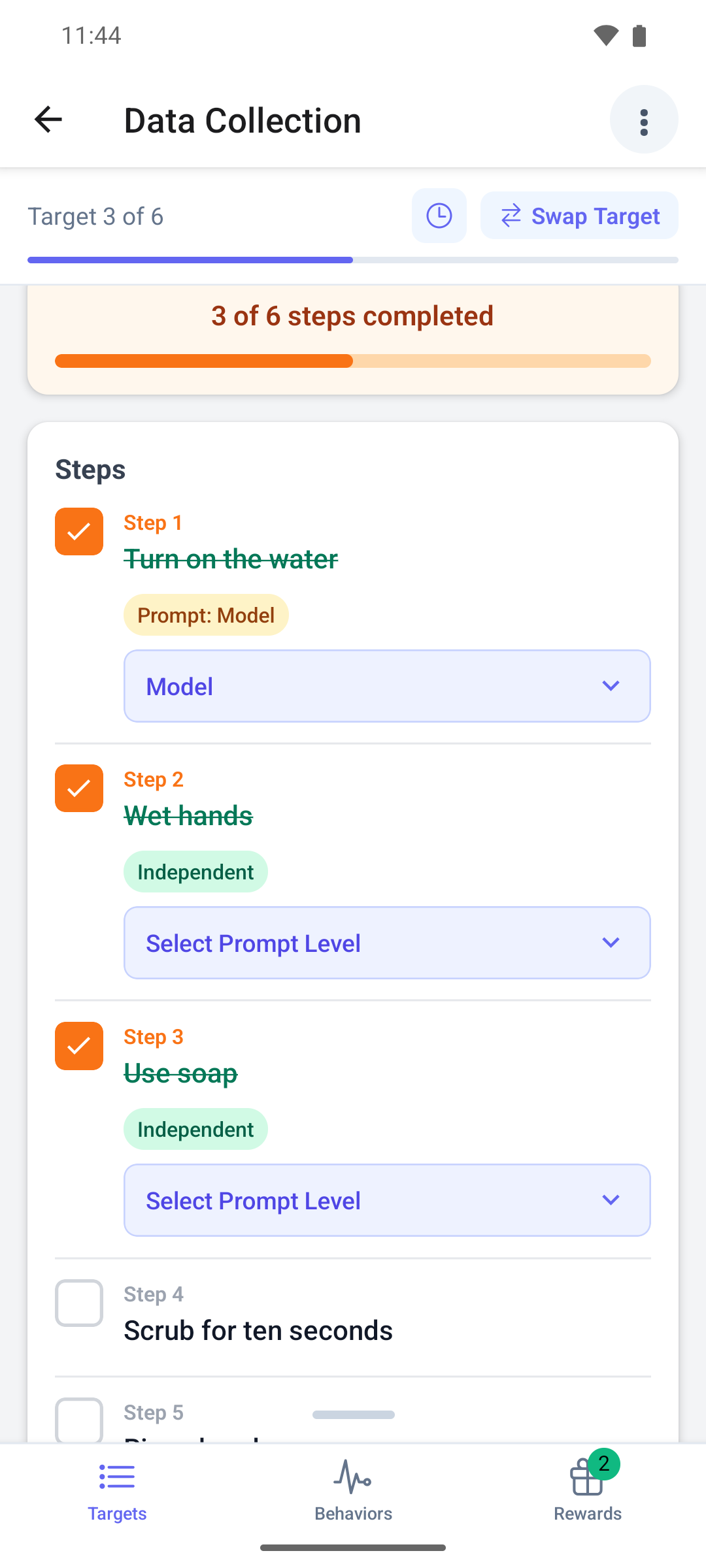
The page shows how many steps are done, for example 3 of 6 steps completed, and the list of Steps.
- Tap a step to mark it complete. Tap it again to undo.
- If the target tracks prompts, tap Select Prompt Level under a completed step and pick the level, or Independent.
- Mark All Complete ticks every step and clears the prompt levels. All Steps Complete! shows once every step is ticked.
- Add Notes (Optional) if you want, then tap Save Results.
- Review Task Analysis Data shows the Steps Completed, the Total and, with prompts, the Steps Independent, plus each step. Tap Confirm & Save, or Go Back to change something.
The page switches to the saved run. Use the + on it to score another run.
Good to know
- You can save a run with no steps ticked. It records that the learner completed none.
- A completed step with no prompt level counts as independent. When the target does not track prompts, every completed step counts as independent.
- On the phone, an unticked step keeps the prompt level you picked, but it does not count.
- On the phone, unsaved ticks stay on the target and come back when you open it again, until you close the app. Leaving the screen does not warn you about them.
- The web app lets you collect on a submitted session when your clinic allows aides to correct submitted sessions. The mobile app only collects during an in-progress session.
What happens next
- The run is saved on the session. Your BCBA sees the steps, the prompts and the session score.
- If this target is in generalization or maintenance, the same checklist appears inside a generalization run or a maintenance probe, depending on how your clinic records them.
- To change a saved run, see Correct my data during a session.