Breadcrumb: Getting Started
Update the mobile app
What to do when the ABACare mobile app says an update is required or available, and how to install it.
New versions of the ABACare mobile app come out from time to time. Each time you open the app, it checks your version. If your version is too old to keep working, the app asks you to update before you continue. If a newer version is available, the app offers it and lets you carry on. This applies to everyone who uses the mobile app. The web app always runs the latest version, so there is nothing to update there.
When an update is required
Instead of your home screen, the app shows Update Required with the message This version of the app is no longer supported. Please update to continue. Nothing else in the app works until you update.
- Tap Update Now. The App Store or Google Play opens at the ABACare app.
- Install the update.
- Open ABACare again.
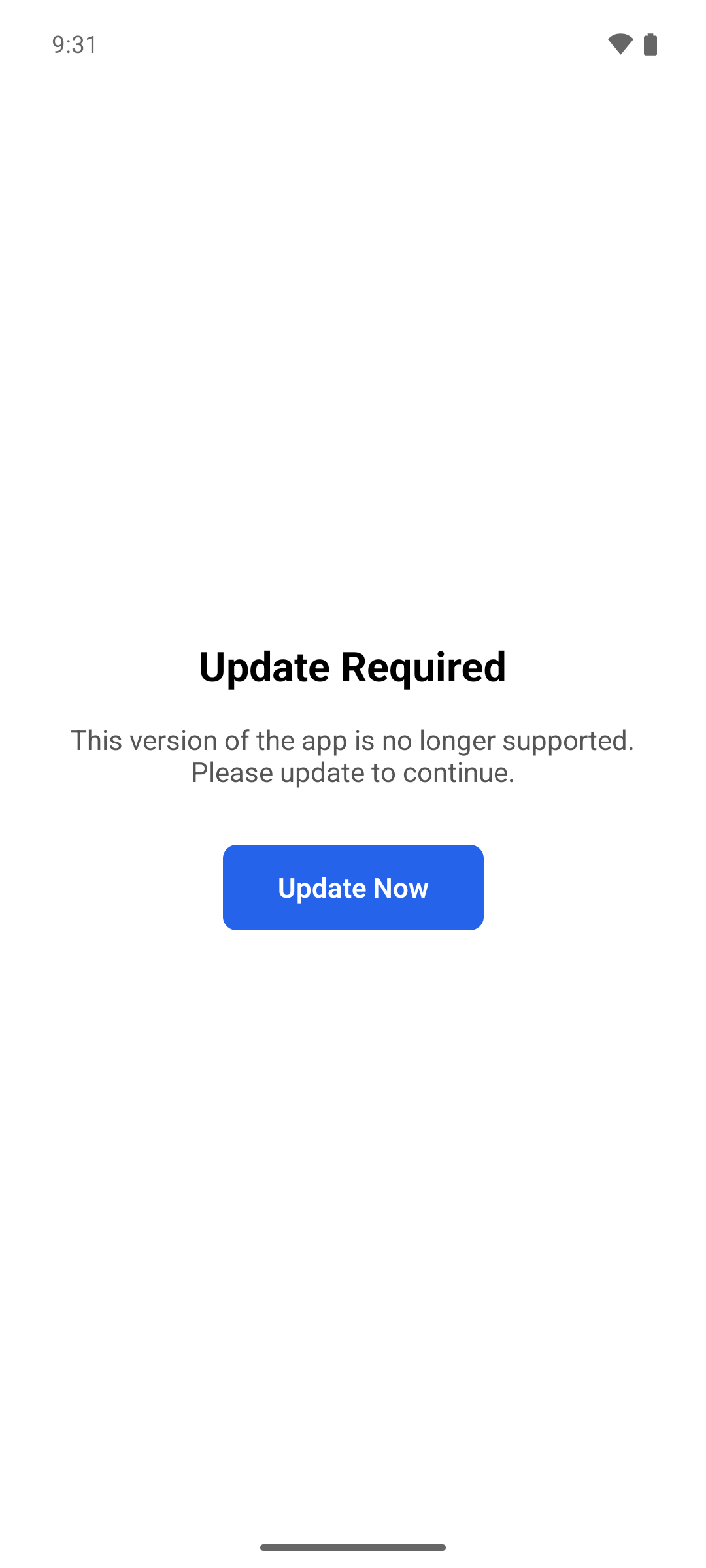
If Update Now is greyed out and the screen says Store link not yet available. Please contact support., open the App Store or Google Play yourself, search for ABACare and update it from there.
When an update is available
A window titled Update Available opens over the app. You can keep working and update later.
- Tap Update Now. The App Store or Google Play opens at the ABACare app.
- Install the update, then open ABACare again.
To update later, tap Not Now. The window comes back the next time you open the app.
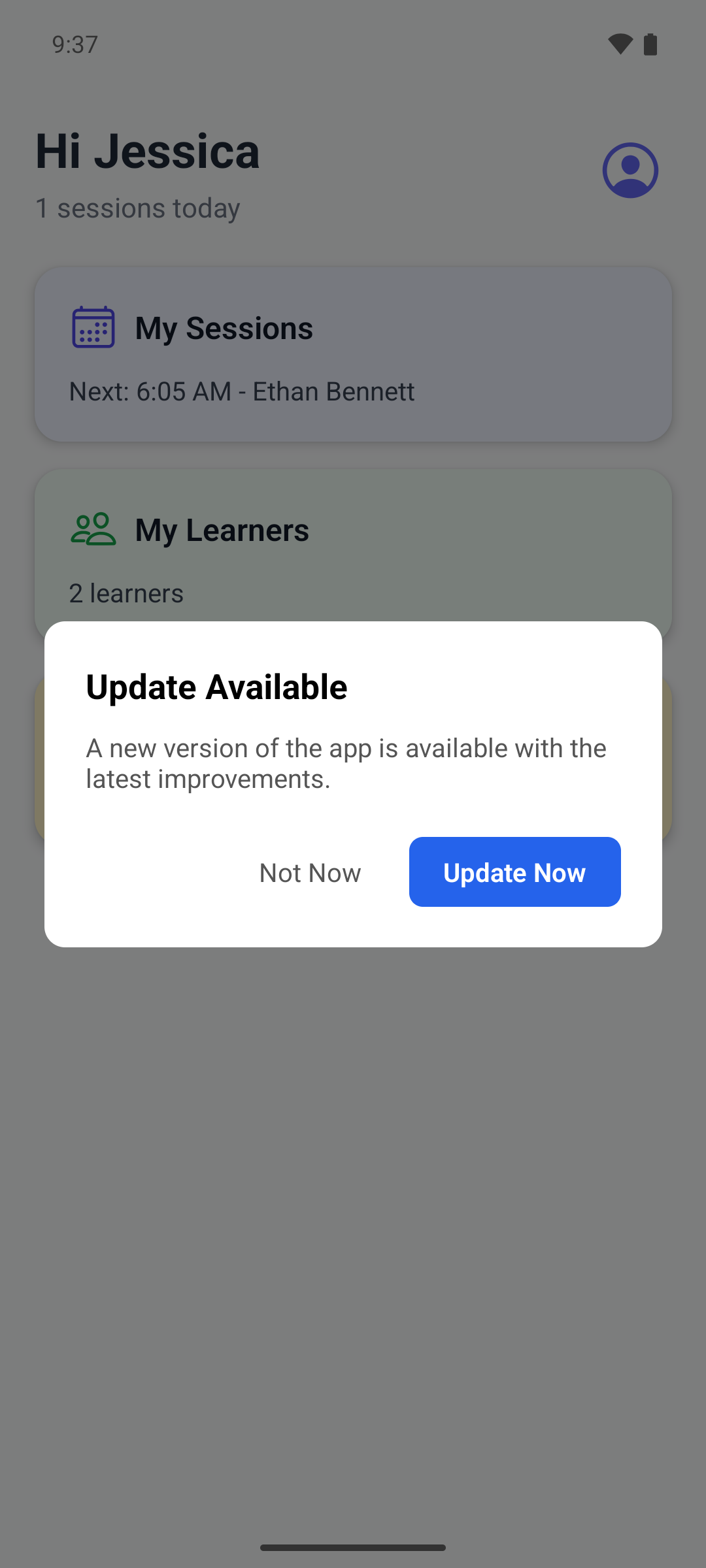
If Update Now does nothing, update from the App Store or Google Play yourself.
Check which version you have
Tap the person icon on the home screen to open Profile. The version number is at the bottom of the screen.
What happens next
After the update, ABACare opens as usual. If it shows the sign-in screen, sign in with your email and password.
The app checks for updates only when it starts, not when you come back to it from the background. If you hear a new version is out, close the app completely and open it again.