Breadcrumb: Aide › Data collection
Collect a granular maintenance probe
In a clinic that uses Granular collection, check a mastered skill by recording a full run that ABACare scores as a pass or fail.
A target in maintenance is a skill the learner has mastered and generalized. From time to time you check that the learner still has it. This check is a maintenance probe. When your clinic uses Granular collection, you run the target with its usual collector and save, and ABACare scores the run against the maintenance criteria your BCBA set and shows Pass or Fail. There is no context to choose.
Before you start
- This applies when your clinic's generalization and maintenance collection is set to Granular, which is how the session was started. In Simple mode you record whether the learner still has the skill with one tap: see Record a generalization or maintenance pass or fail.
- The session must be In Progress and assigned to you, with the target selected.
- Generic targets in generalization or maintenance always get the one-tap pass or fail, even in Granular mode: see Record a generalization or maintenance pass or fail.
- Your BCBA sets how often the target is checked. The mobile app offers a maintenance target when you start a session only when its probe is due. The web target list shows every maintenance target that has a check schedule, due or not.
- BCBAs and org owners run probes the same way in the web app.
Run the probe
Web
Open the session and select Collect Data, then Target. Tick the maintenance target and select Continue.
- The window shows Maintenance probe, or Maintenance probe · due when the check is due.
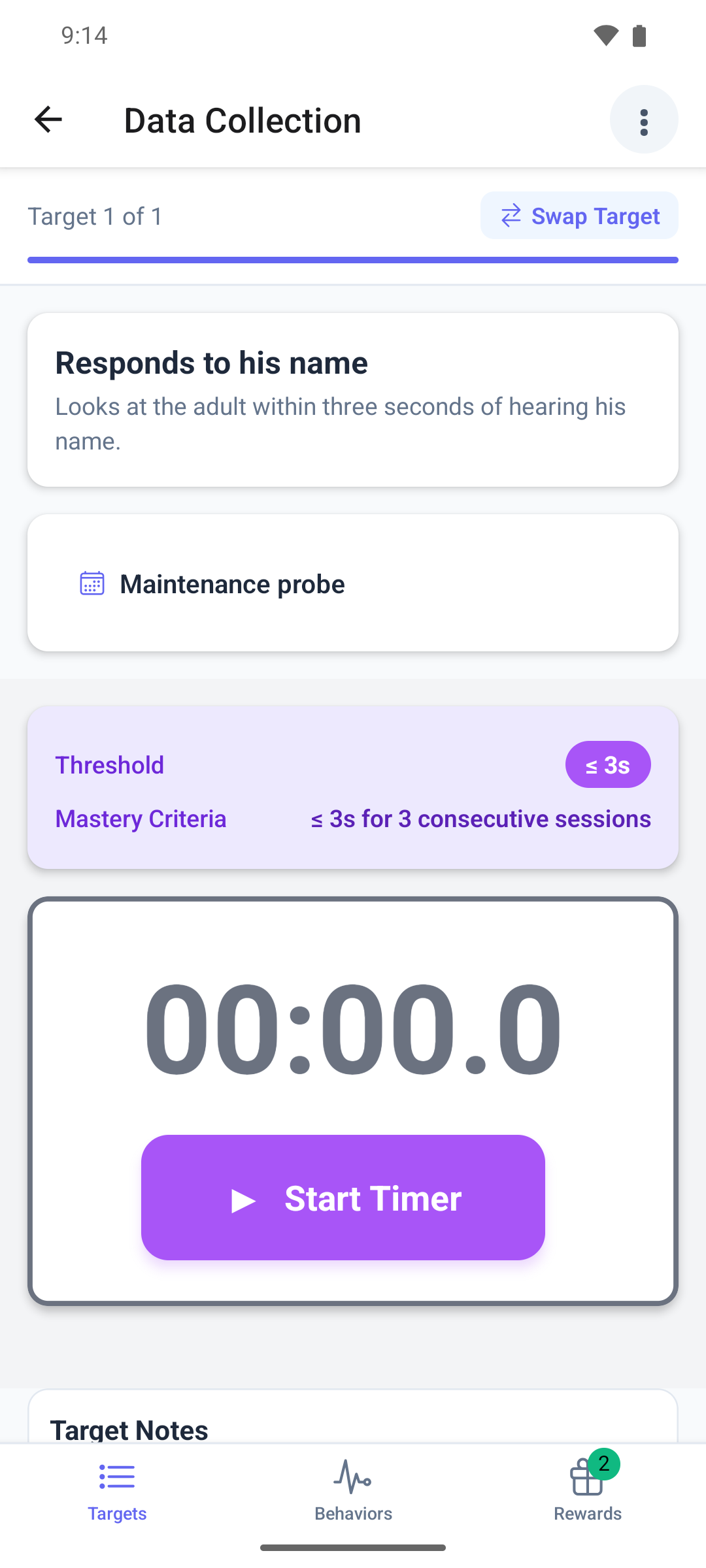
- Record the run with the target's usual collector, for example the timer of a latency target.
- Select Save Data.
- The result replaces the collector: Pass or Fail. Select Dismiss, or wait a moment.
The window closes and the next target you picked opens.
Mobile
Swipe to the maintenance target on the Targets tab.
The page shows Maintenance probe, or Maintenance probe · due, above the target's usual collector.
- Record the run and save it from the collector's summary, as for any target of that type.
- The result fills the page: Pass or Fail with Maintenance probe. Tap to continue, or wait about two seconds.
The page then shows the saved run.
Good to know
- Run one probe per target per session. The mobile app does not offer another run from the run list, but the web app, and the + on a saved run in the mobile app, still let you add one. Every probe you save counts towards the schedule, so a second pass moves the schedule on twice.
- A probe you record before it is due still counts.
- Deleting a probe run does not undo its effect on the schedule. Tell your BCBA if you saved one by mistake.
- There is no offline saving. If a save fails, the app keeps what you entered so you can try again.
- In the mobile app, a probe you recorded but did not save cannot be saved when you submit. The app warns that it will be lost, and you can go back and save it first.
What happens next
- The probe is saved with its result, and the result sets the date of the next check.
- When the session is completed, enough passes in a row can move the target to mastered, and a failed last probe can prompt a suggestion to your BCBA to move the target back.
- To change a saved probe, see Correct my data during a session. ABACare scores it again.