Breadcrumb: Aide › Data collection
Add target notes during a session
Write a short note on one target while you collect, and edit or delete target notes in the mobile or web app.
A target note is a short comment about one target in one session: the prompt that worked, what distracted the learner, a change you noticed. It is not data and does not change any score. It works on every target type, your BCBA reads it with the session, and it feeds the session summary ABACare writes when you submit. For a note about the whole session, use session notes instead.
Before you start
- As an aide, you write target notes while the session is In Progress. On the web you can also write them after you submit if your clinic lets aides correct submitted sessions.
- BCBAs and org owners write target notes in the web app while the session is In Progress or Submitted.
- A note holds up to 1,000 characters.
Add a note
Web
Open the session. On the Data card, each target that already has a run or a note shows a Target Notes block.
- Type in the box under Target Notes. The counter shows how many of the 1,000 characters you have used.
- Select Add Note.
The message Note added appears and the note joins the list with your role, the date and the time. A target with no run and no note yet has no block: record a run first, or add the note from quick entry.
Mobile
Open the session and tap Data Collection, then swipe to the target.
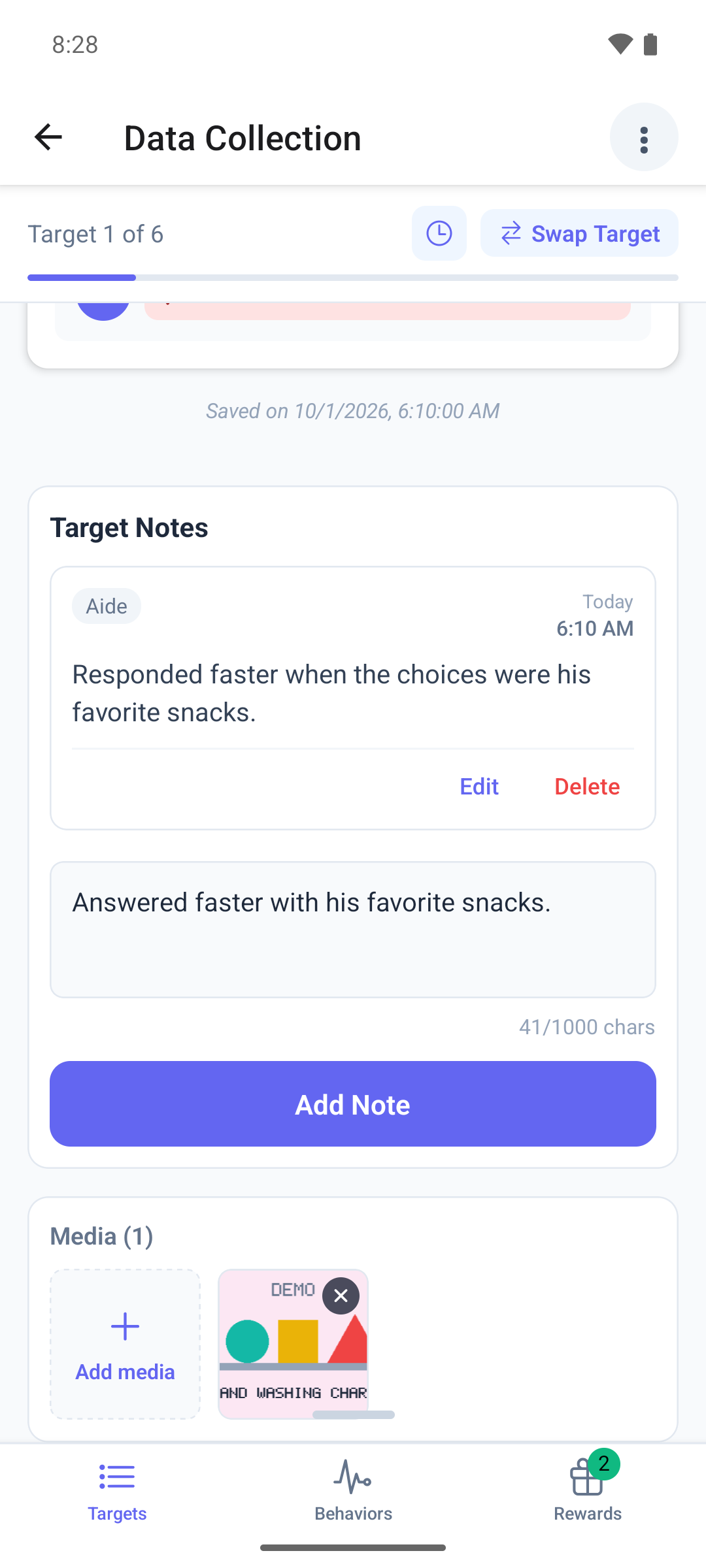
The Target Notes card sits under the collector on every target page, and under the run summary once you have saved one.
- Tap Add a note for this target… and type your note. The counter turns amber near the limit.
- Tap Add Note. It reads Saving... while the note is sent.
The box clears and the note appears in the list, oldest first. The app shows no other confirmation.
Edit or delete a note
Web
Each note shows a pencil and a bin while you can write.
- To edit, select the pencil, change the text and select Save, or Cancel to keep it as it was. The message Note updated appears.
- To delete, select the bin and confirm in Delete note. The message Note deleted appears.
Mobile
Each note shows Edit and Delete while the session is In Progress.
- To edit, tap Edit. The note's text replaces whatever you had typed in the box, and Editing note shows above it. Change the text and tap Save, or tap Cancel.
- To delete, tap Delete and confirm in Delete note.
The edit and delete buttons show on every note of the target, including your BCBA's. Change only your own notes. An edited note is marked edited, even if you saved it without changes.
What happens next
- The note is saved on the session straight away. Your BCBA sees it when reviewing the session, and it appears in the recent collections sheet of the target.
- To empty a note, delete it: a note cannot be saved blank. A deleted note cannot be restored.
- After you submit, the mobile app shows target notes read-only, and a target with no notes shows no card at all.